How do I manage Key Stakeholders?
Success with a key account often depends on more than just one contact. Key Stakeholders are the influential individuals—for example HCPs, hospital administrators, or committee members—who impact the progression of your Account Plan. Identifying and tracking them ensures your team engages the right people at the right time.
You can manage these relationships directly within the Key Stakeholders section of your Account Plan.
Adding Key Stakeholders
Navigate to the Key Stakeholders section of your active Account Plan. Selecting the Create button provides you with three distinct ways to add people — Create New Stakeholder, Create from Hierarchy, and Create from Sphere of Influence. Each method allows you to select an existing account from the Vault CRM database to add as a Key Stakeholder. If a new contact does not have an account in Vault CRM, you must create an account before adding them to the Account Plan as a Key Stakeholder.
Create New Stakeholder
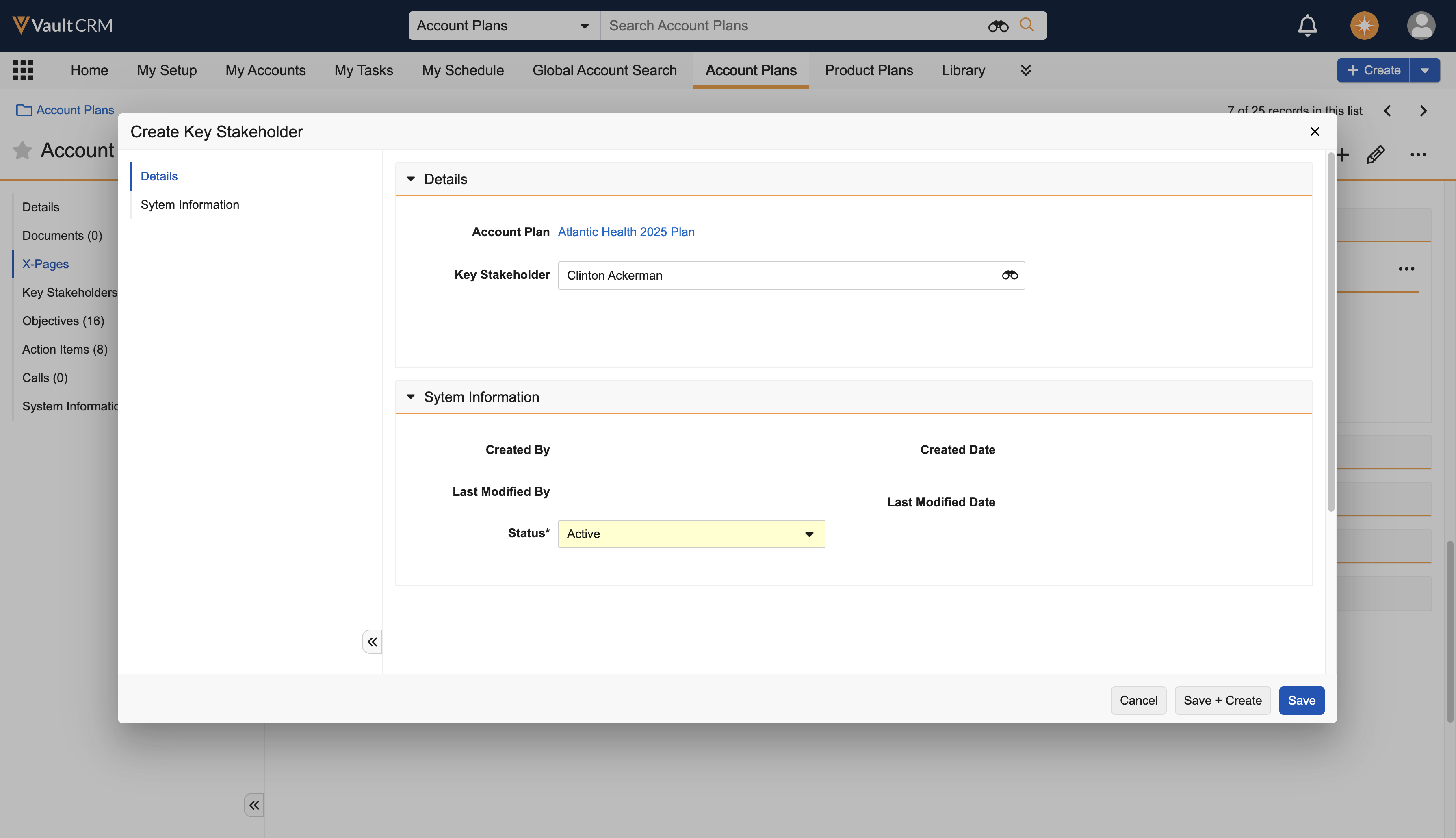
Select Create New Stakeholder to add a completely new entry. For example, Dr. Clinton Ackerman is a stakeholder for the Atlantic Health 2025 Plan. Let’s add him as a stakeholder:
-
Select Create New Stakeholder.
-
Select Dr. Clinton Ackerman and add any required details.
-
Select Save.
Create From Hierarchy
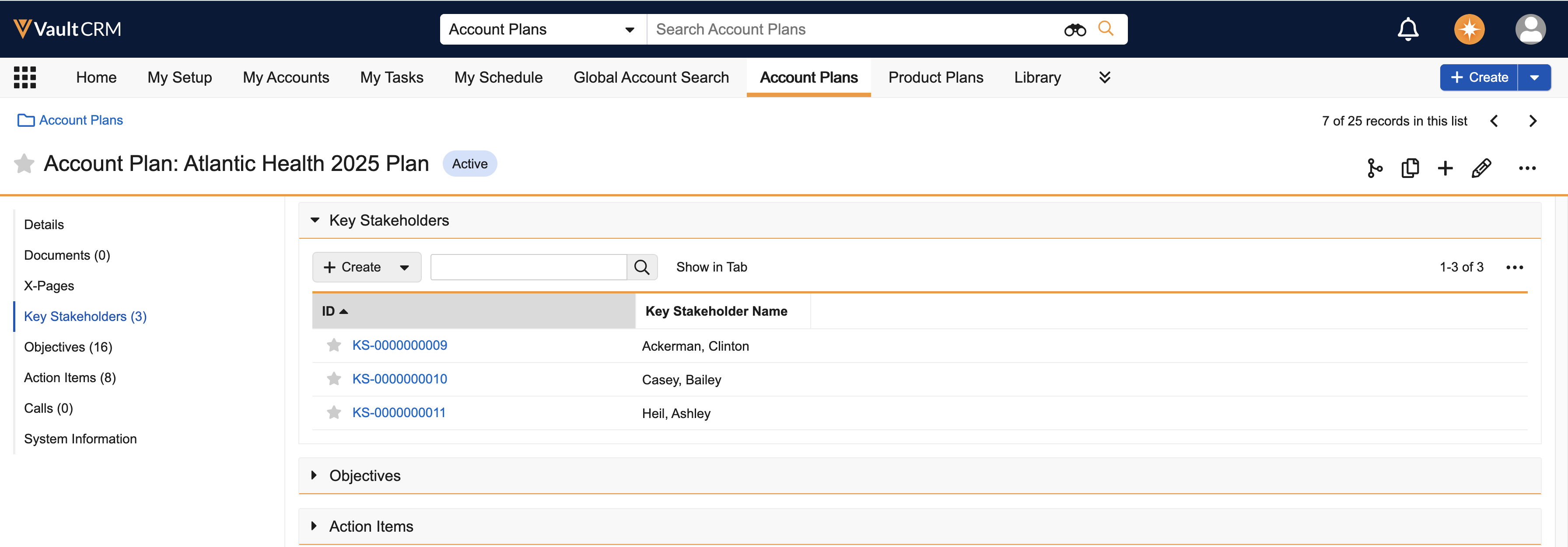
Select Create From Hierarchy to pull in stakeholders who are already part of the account's legal or organizational structure. For example, a health care organization may include multiple HCPs. Adding stakeholders from the HCO hierarchy makes it easier to find these HCPs. Let’s add Dr. Casey Bailey to the plan.
-
Select Create From Hierarchy to view a tree structure of the account.
-
Select the Plus (+) button next to Casey Bailey to add him to the plan.
Create From Sphere of Influence
Select Create From Sphere of Influence to add influencers who may not work directly at the account but have a relationship with it (for example, an affiliated specialist). For example, Dr. Ashley Heil is not a provider for the HCO targeted by the plan, but she has influence on Dr. Clinton Ackerman who is a provider for the HCO. Adding stakeholders from the Sphere of Influence allows users to see this relationship and include Dr. Heil as a plan stakeholder.
-
Select Create From Sphere of Influence to display a list of known affiliations.
-
Select the Plus (+) button to add affiliations as stakeholders. Their known Role (if available) is pulled in automatically. For our example, add Ashley Heil.
-
Select Save.
Editing and Removing Stakeholders
As relationships change, your plan must evolve. For example, Dr. Ackerman leaves Newton Memorial Hospital to start his own practice. He should no longer be a stakeholder for the existing HCO plan, but you may need to add him to a new plan targeting his new practice.
- To update a stakeholder’s role or details, select the Edit icon next to their name in the list
- If a stakeholder is no longer relevant to this specific plan, select the Delete action. This removes them from the Account Plan but does not delete their record from the Vault CRM database.