How can I review potential violations?
A Monitored Text record is created when a Monitored Rule is triggered. This structure helps maintain compliance and simplifies the review process, especially when multiple violations are found within the same user-input text.
The process of reviewing potential violations within Approved Notes is a vital aspect of maintaining compliance. By effectively utilizing Monitored Text records, compliance users can swiftly identify, assess, and resolve violations, ensuring that monitoring processes align with regulatory requirements.
With features that streamline the review process and facilitate feedback on violations, compliance users can uphold the integrity of communications while reducing the likelihood of false-positives.
Review Monitored Text records
When Monitored Rule violations occur, each potential violation is recorded as a Monitored Text record.
For example, if “free” and “luxury” are configured as Monitored Phrases and a call record includes the text “offered the physician a free trip to a luxury resort in exchange for prescribing Cholecap,” three monitored text records are created:
- A Flagged Text parent record, which serves as a comprehensive summary
- Two Flagged Phrase child records, each capturing the specific flagged phrases “free” and “luxury”
To begin the review process, navigate to Approved Notes > Monitored Text > Flagged Phrases view in the left-hand pane.
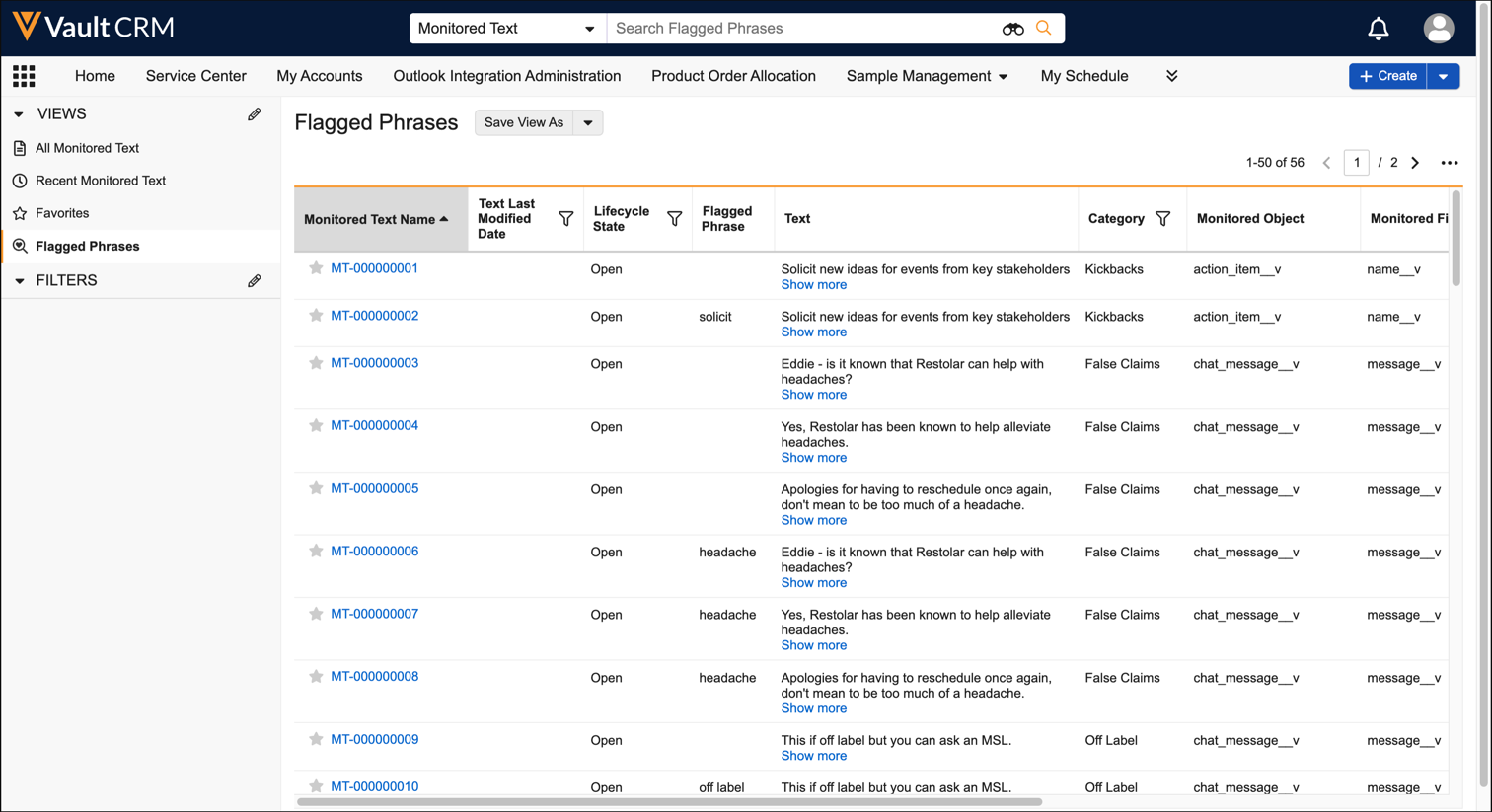
The Flagged Phrases view includes essential information across several columns:
-
Monitored Text Name - Links to the specific Monitored Text
-
Flagged Phrase - The violation present in the text
-
Text Last Modified Date - When the text was last modified
-
Lifecycle State - The current state of the monitored text
-
Text - The user-entered text including the violation
-
Monitoring Rule Name - The associated Monitoring Rule
-
Category - The category of the associated Monitoring Rule
-
Monitored Object - The object containing the violation, for example, call2__v
-
Monitored Field - The field containing the violation, for example, call_notes__c
-
Assignee - The user responsible for the violation
-
Country - The country code relevant to the Monitoring Rule
-
Last Modified By - The user who last modified the text containing the violation
In group calls, text that violates Monitoring Rules are flagged only once for inherited fields in parent records, such as call2__v, call2_discussion__v, and medical_discussion__v objects.
For example, if a group call for an account with four attendees contains a violation in the Next-Call Notes field, the violation will be recorded only once for the parent call record, even though the text is copied to each of the four attendees’ child call reports. However, if users edit these inherited fields, the text will be re-evaluated for potential violations.
Understand Monitoring Rule categories
Let’s dive deeper into Monitoring Rule Categories. These categories are essential for effective compliance management within the Approved Notes system. Categorization allows compliance users to quickly identify relevant rules and focus their attention where it is most needed, ultimately leading to a more streamlined review process and enhanced oversight.
Every Monitoring Rule in Approved Notes must have an associated category. When a potential violation is flagged, the category from the applicable Monitoring Rule is reflected on the potential violation. By default, the following categories are available:
-
False Claims - Crucial for identifying misleading statements, which is vital for compliance with regulation like the Federal False Claims Act (FCA). The FCA imposes significant penalties for knowingly making false claims. Monitoring for these helps protect against overcharges to federal and state healthcare programs.
-
Examples of terms that might be monitored under this category include - claim, prior authorization, code, best-practice, purchase, reimbursement
-
-
Kickbacks - Helps detect improper financial incentives, supporting adherence to Anti-Kickback Laws. Other relevant regulations to consider include the Food, Drug and Cosmetic Act, PDM Act, and the PhRMA Code.
-
Examples of terms that might be monitored for potential kickback concerns include- paid, offer, solicit, fee, grant, financial support, sponsor
-
-
Off Label - Key for identifying discussion of products outside of their approved indications, which is critical as all product communications must be accurate and compliant.
-
Offensive - Helps catch inappropriate or unprofessional language. This could include swear words, derogatory terms, or language deemed offensive according to your company's communication policies.
-
Other - Acts as a catch-all for Monitoring Rules that don't fit predefined categories. This flexibility allows organizations to track emerging issues or specific concerns, ensuring that potential compliance violations are not overlooked.
Create custom categories
To further enhance the relevance of Monitoring Rules, you can add additional categories tailored to your organization’s compliance requirements. By defining categories that reflect unique risks, you can ensure compliance teams focus their efforts on the most relevant areas and that monitoring remains aligned with operational realities.
To create a custom category and ensure the category is an available option:
-
Navigate to Admin > Objects > Monitoring Rule object > Fields > Category.
-
Select Create corresponding to Picklist Values.
-
Populate the Picklist Value Label and Picklist Value Name fields.
-
Select Save + Create.
-
Navigate to Monitoring Rule object > Object Types > Background Monitoring object type > Category field label.
-
Select Edit.
-
Select the new category in the Available Values field corresponding to the Picklist Values section.
-
Select the right-facing arrow icon to move the category to the Selected Values field.
-
Select Save.