How do I resolve potential violations?
To resolve violations, select a Monitored Text record from the Monitored Text tab. Move through the lifecycle states defined for your organization's compliance process.
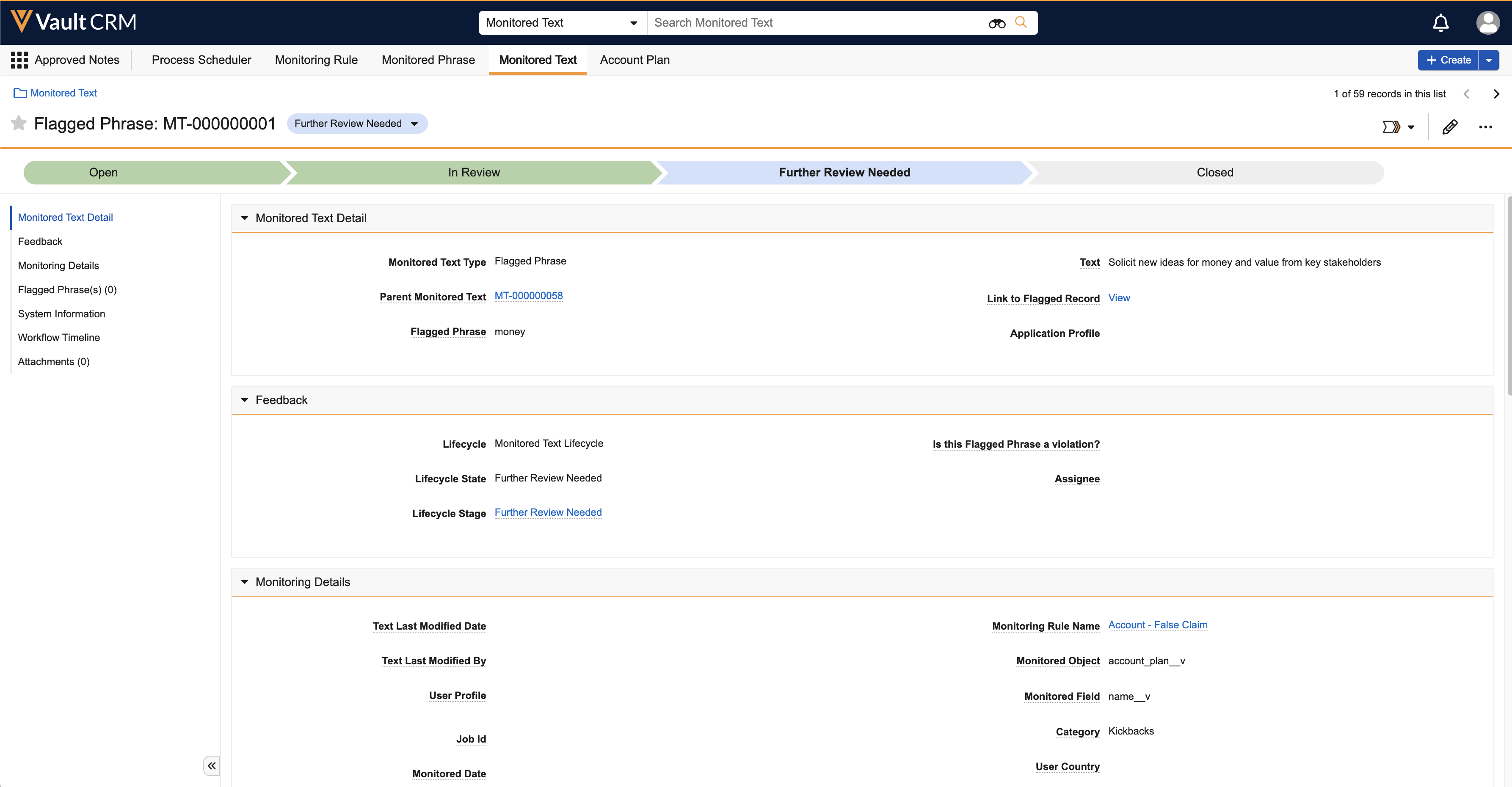
The details displayed vary based on whether the violation is a Flagged Phrase or Flagged Text.
-
For Flagged Phrase records, compliance users can view panels containing:
-
Monitored Text Type - Indicates it is a flagged phrase
-
User Country - Displays the country of the user responsible for the violation
-
Parent Monitored Text - Links to the corresponding Flagged Text record
-
Flagged Phrase - Shows the phrase that caused the violation
-
-
For Flagged Text records, the panels provide similar information, including links to the specific records containing the violation and the text context for better understanding
Understand the Monitored Text lifecycle
The Monitored Text lifecycle efficiently manages the status of Monitored Text records.
Each lifecycle state, Open, In Review, Further Review Needed, and Closed, represents a distinct phase in the compliance workflow, enabling users to identify where a particular record stands at any given time. Compliance teams may use the default states and optionally, create custom lifecycle states as compliance needs change.
This structured approach improves accountability and transparency within the compliance process and facilitates better communication among team members regarding the status and necessary actions for each monitored record.
By default, Approved Notes provides four lifecycle states:
-
Open - Indicates a new Monitored Text record being tracked and awaiting initial review by compliance users. This state ensures prompt logging of potential Monitoring Rule violations.
-
In Review - Indicates active evaluation by a compliance user for potential violation of established Monitoring Rules
-
Further Review Needed - Indicates a record requiring additional scrutiny due to ambiguities or multiple violations identified in the previous state
-
Closed - Indicates the completion of the review process and that all necessary actions, for example, clarifications, training, disciplinary measures, have been taken. Closed records serve as historical data for audits and insights.
Create custom lifecycle states
The default states allow compliance users to track where a particular Monitored Text record stands in the review process. However, your organization may have unique requirements that necessitate the customization of these states. As a business admin user, you can easily tailor these options to better fit your compliance workflows.
To create a custom lifecycle state:
-
Navigate to Admin > Configuration tab > Objects.
-
Select Monitored Text.
-
Select Monitored Text Lifecycle in the Options section.
-
Select Create corresponding to States
-
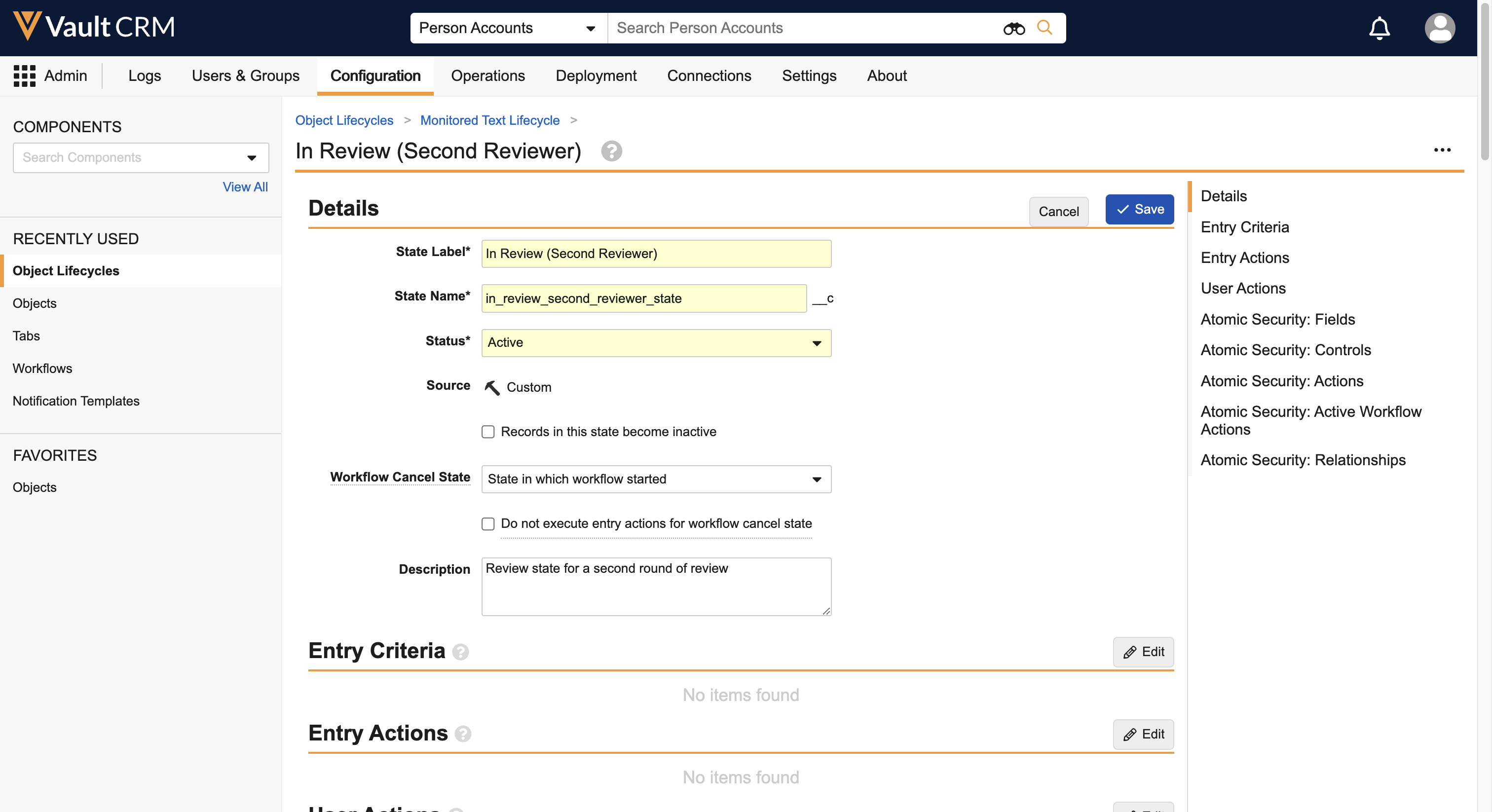
Populate the State Label and State Name fields.

|
Using Vault’s native workflow capabilities, you can also customize the process by setting up email notifications to alert compliance users based on specific conditions. For example, notifications can be sent when a monitored text record is open and has not been modified for two days, or if the record is assigned to a specific user and falls under a designated category like “kickback__v.” For more on workflows and potential customizations, see Configuring Object Workflows on the Vault platform help site. |