How can I use Auto-Publishing with CLM?
Auto-Publishing for CLM is your go-to method for delivering MLR-reviewed materials to your field teams. It’s perfect for when you have approved documents in PromoMats or MedComms ready for your field users to present.

|
You can enable Auto-Publishing by defining your CRM Rendition Settings in Vault. |
Let’s look at an example. A content creator wants to upload a MLR-reviewed PowerPoint of the product, Natevba, so field users can present and share with HCPs. How can they use Auto-Publish to ensure all of the necessary CLM Presentation and Key Message records are automatically created?
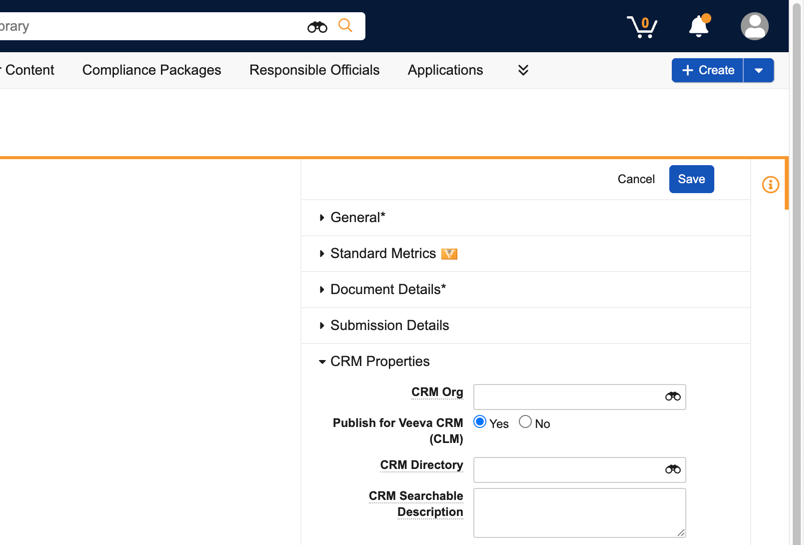
Once Auto-Publishing is enabled, the content creator uploads the PowerPoint file to PromoMats or MedComms. The key is to select Yes to Publish for Veeva CRM (CLM) This means you don’t need to manually create, link, or manage separate binders and slides for your content.
Let’s look at another example. Imagine a content creator spots a typo in a slide. The problem? That slide is already being used in several custom presentations built by field professionals. How can they fix the typo without breaking everyone’s presentations?
-
Navigate to the appropriate Auto-Published CLM material and identify the typo.
-
Select and expand the Download Options menu, and select Source File.
-
Update the downloaded file and save the corrected material.
-
Select and expand the All Actions menu, and select Upload New Version.
-
Upload the updated file.
-
Populate the Version Description text field, optionally.
-
Select Upload.
-
Select and expand CRM Slide Update Method, and select Update Existing Slide.
-
Select Save.
The custom presentation slides are automatically updated the next time the users sync.
|
|
Use the CRM Rendition Override field for a document in PromoMats to render a document different from the admin-specified render setting. For example, if the default rendition setting is Multi-Slide Presentation, but you’d like to preserve a PowerPoint’s animations, use the Override field to render the file as a native PowerPoint file, and not the default Multi-Slide Presentation. |