How can I customize consent requirements by channels and lines?
Since there are different compliance regulations that apply to different types of communication, Amy can tailor each Consent Type and Consent Line to enforce different key requirements.
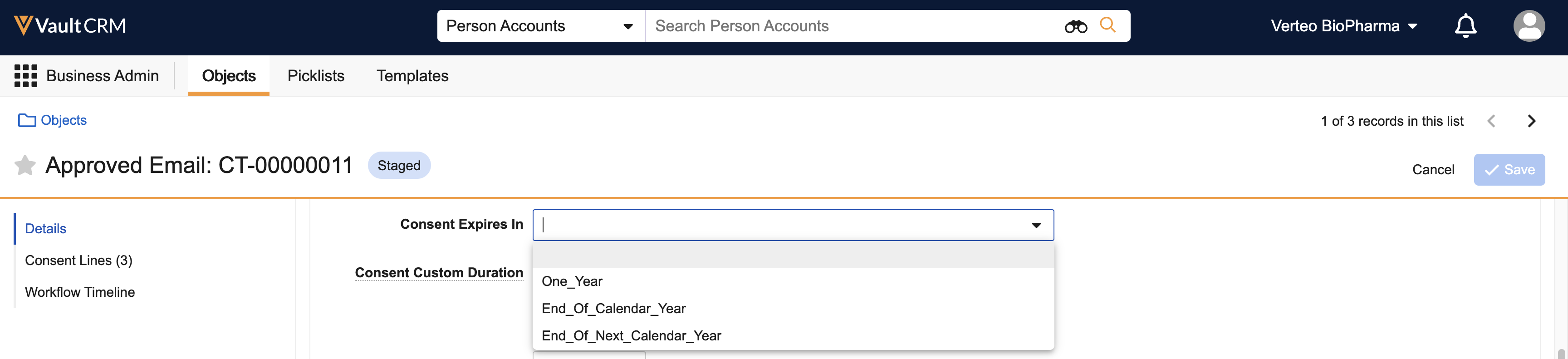
- Consent Expiration – One of the requirements is that Amy’s team recaptures email consent from HCPs every year. Vault CRM's consent duration settings make this automatic. On the Approved Email Consent Type record, she sets Consent Expires In to One Year. After an HCP opts in, that consent automatically expires in Vault CRM after 12 months, prompting the field rep to capture it again at their next interaction. For the Messaging channel, which her company uses for short-term campaign communications, Amy uses the Custom duration option and sets a specific number of months to match each campaign's timeline. This is especially useful for sub-channel consent lines, which are designed for temporary or recurring campaigns with defined start and end dates.
- Opt-Out Disclaimer Text – When an HCP opts out of a channel, Amy wants to display a short explanation, clarifying what opting out means for that channel. She populates the Opt Out Disclaimer Text field on the Consent Type record for Approved Email with language her legal team has approved. This text displays as a checkbox on the consent review screen whenever the HCP opts out and must be selected to move on.

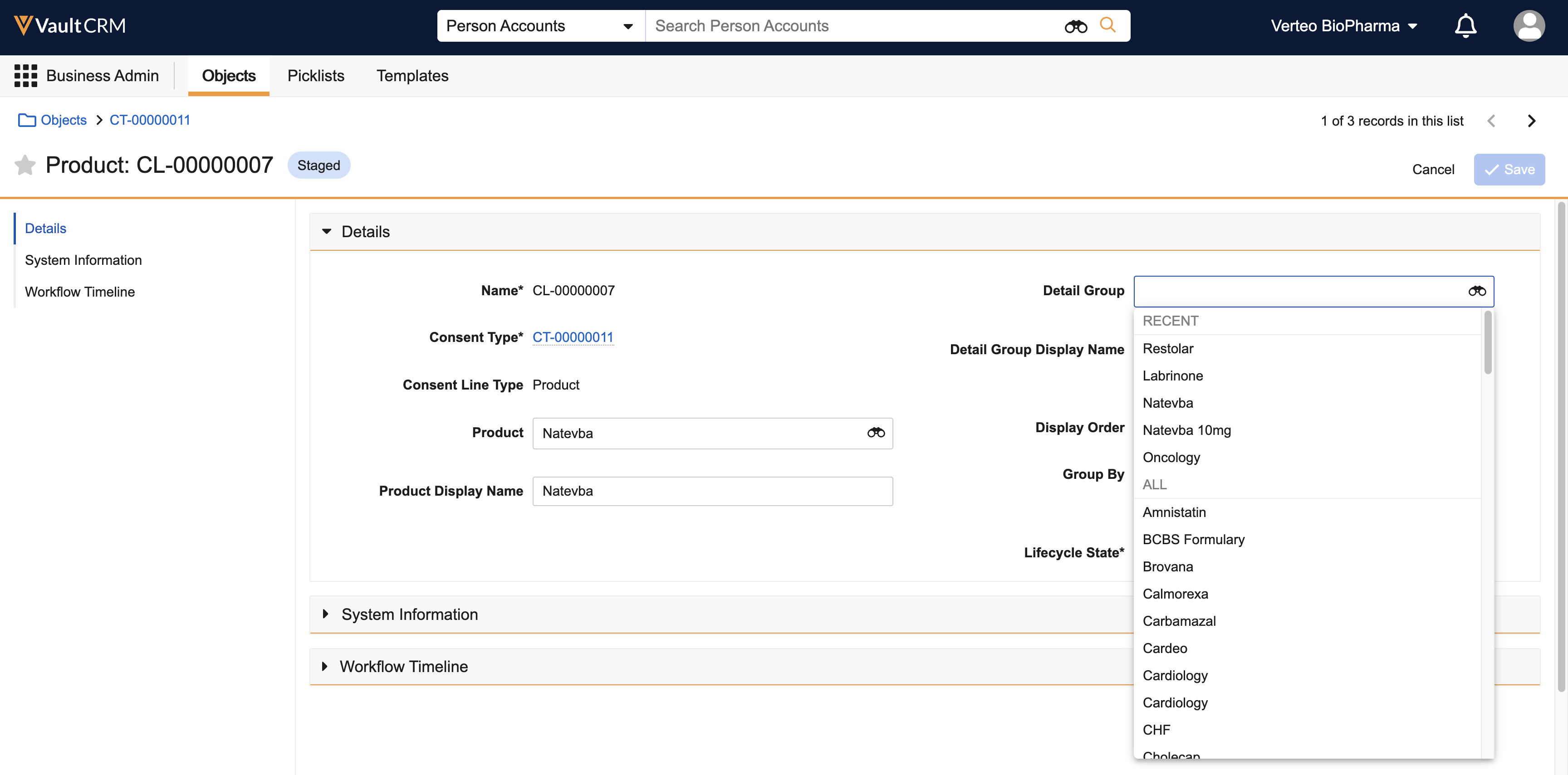
- Detail Groups on Consent Lines – Amy notices that some of her products in the catalog are tied to detail groups, an internal grouping that controls how products are organized for field reps. When she creates consent lines for those products, she uses the Detail Group and Detail Group Display Name fields to associate each line with its detail group. On the Consent Capture screen, HCPs will see products organized neatly under their detail groups rather than in one long list, making the screen easier to navigate. Products without a detail group display under the group Common by default.
- Custom Channels – For channels that aren’t built into Vault CRM, Amy can create a custom channel. To do this, she creates matching custom object types on both the Consent Type and Multichannel Consent objects. Then she can create Consent Type records using the custom object type, which will display as an option on the Consent Capture screen, just like any other channel.

Unlike built-in Veeva channels, consent captured for custom channels is not automatically enforced within Vault CRM. Amy's team will need to integrate consent data from Vault CRM with their external system to ensure consent is respected there as well.
Throughout this process, Amy has been working with her Consent Header set to Staged status. This allows her to review exactly how the Consent Capture screen will look for her users without making it visible to the field team yet. Once she's satisfied, she'll set the Consent Header to Active to go live.