How do I draft a template with AI?
Not every template has to start from a blank canvas. Content Studio’s Model Context Protocol (MCP) lets content creators generate a complete Approved Email draft through a natural-language conversation in Claude describing the content type, product, email type, language, and formatting they want, and getting back a draft that’s ready for preview, final editing, and deployment in Content Studio. This can meaningfully cut template creation time.
Open a new chat in Claude (the recommended model is Sonnet 5) and describe the template you want, including the product, email type, language, and any specific CSS formatting. It helps to mention Content Studio explicitly in the prompt so Claude uses Veeva’s Content Studio tools rather than generic email tools. Confirm details when prompted, select or confirm the Brand Kit to apply (being as specific as possible about which assets to use), and provide any optional refinements like tone or key messages before generation.
Once the draft exists, select Open Preview Link to view it in Content Studio, request changes until it’s right, then select Save to Content Studio.
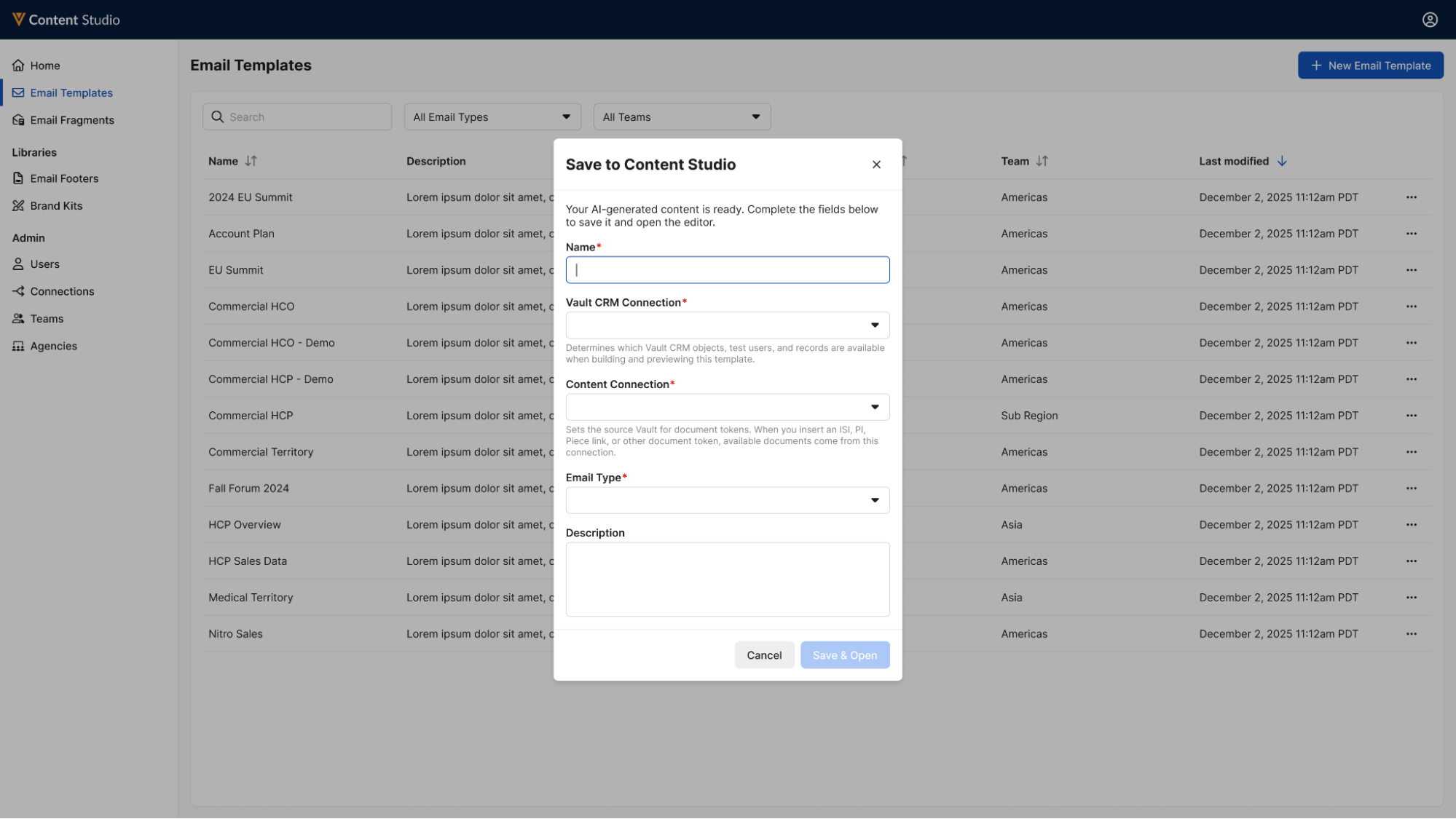
In the Save to Content modal, enter a Name, select the Vault CRM Connection and the Content (PromoMats or MedComms) Connection, confirm the Email Type (it may be pre-filled if you gave it to Claude earlier), and add an optional Description.
Select Save & Open to load the template into the Content Studio editor for final editing and deployment.