What are Engage profiles?
Engage profiles are digital business cards. The digital business card is how your field users present themselves on the Vault CRM application and acts as an entry point for HCPs to communicate with the field users. Every Engage user has an Engage profile.
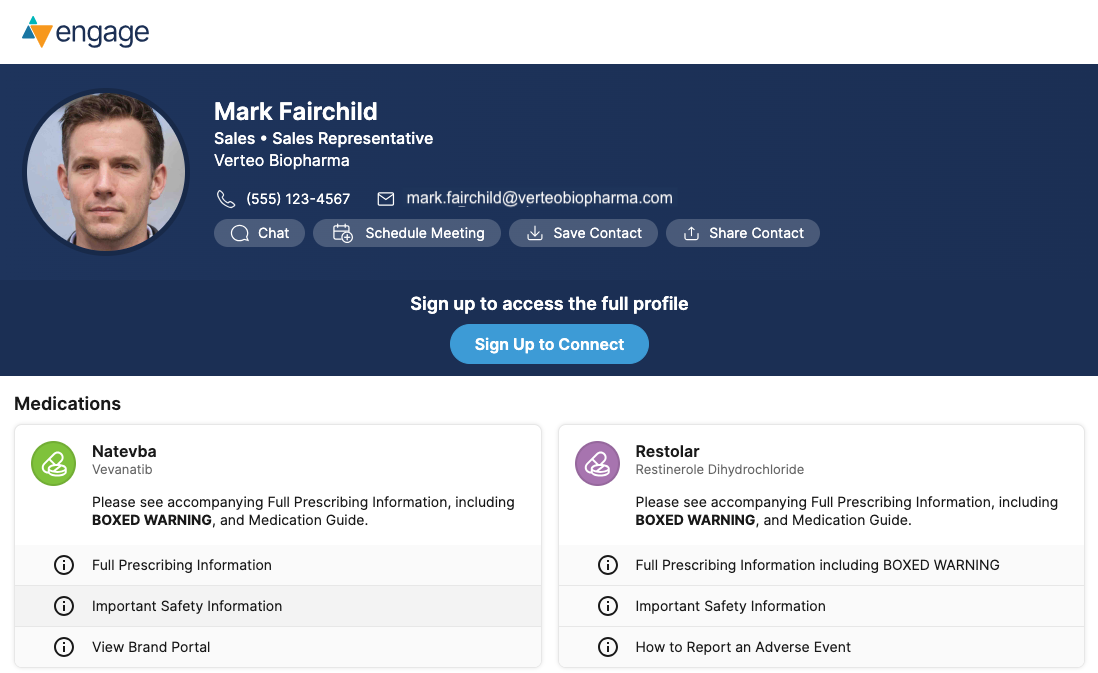
The overall look and feel, along with the medications displayed, are managed via the Engage Connect Administration tab. Use the Engage Connect Administration tab to manage:
-
Basic Branding - Includes the profile header color(s) and the company name
-
(Optional) Medications - Medication assigned and displayed for users in specific Engage Connect Groups
The Engage profile populates the user’s profile information using data from Vault CRM’s User and User Detail records.
-
User Record - Core identity information that can only be changed by an admin. For example, first and last name, email, country, and user type.
-
User Detail Record - Additional identity information, for example, name, photo, phone number, and title. Depending on permissions, this information can be managed by the field user in the Vault CRM app, in addition to the admin.
Let’s say your field user, Sarah Jones, has a new headshot she wants to use. She can update her profile photo herself directly from the My Profile tab in the Vault CRM app. However, something like an email address change must be made by an admin in the field user’s User record in Vault CRM.
On the other hand, HCPs have full control to update their address and contact information directly within their Engage profile. For example, if an HCP earns a new title and moves to a new practice, they can update that information directly in their Engage profile.
Let’s see these scenarios in action:
Why should I link an Engage profile to an account?
For insightful reports and intuitive navigation within Vault CRM, an HCP’s Engage profile should be linked with their corresponding Account record in Vault CRM whenever possible. This link is recommended for two reasons:
-
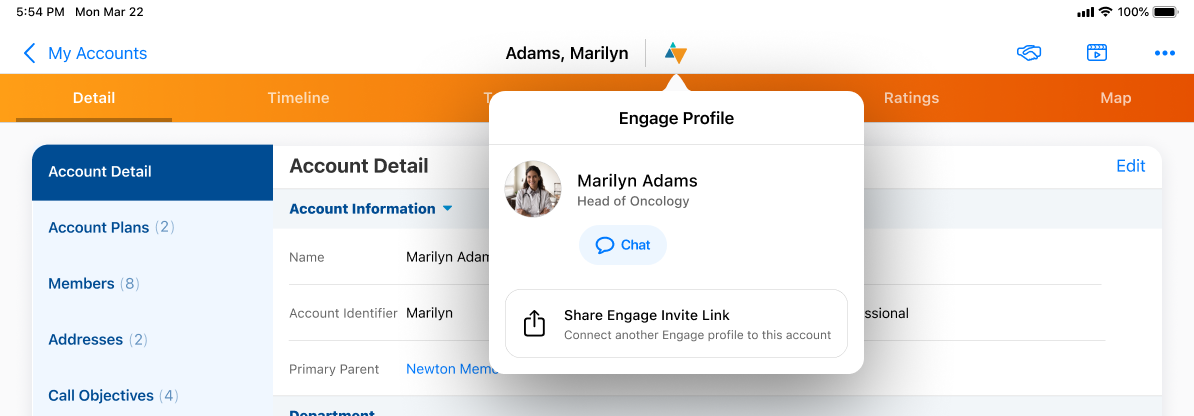
Allows field users to see an HCP’s connection status via the Engage Profile Indicator on the Account record to quickly initiate chats and view their connection status
-
Allows admins to run accurate, account-based reports on chat messages and Engage activity. We’ll talk about that later in the Flightpath.
Once a business admin runs the Engage Profile Integration Sync to link Engage profiles to accounts, the Engage profile indicator icon displays next to the account names. Field users with Engage Chat enabled can then use the Engage profile indicator to easily open the chat thread with the HCP.