How do I set up and customize my digital business card?
Ian, a specialty field rep, has heard from his manager that the company just rolled out DBCs across the field team. Before his next HCP visit, he wants to make sure his DBC is set up and looking sharp. The good news: most of the foundational information — his name, role, email, and company branding — was already configured by his admin. Ian just needs to add the personal touches to make his DBC stand out.
To get started, Ian opens Vault CRM on his mobile device and navigates to his profile in the Options menu, where he can edit DBC information directly. He can also access his profile from the Chats tab.
What's on my digital business card?
Your DBC is made up of several elements, some or which are defined by your admin, and some you can personalize yourself. Here's a breakdown of what you'll see and what you can control:
|
Managed by User |
|
|
Managed by Admin |
|
Updating Photo and Profile Details
Ian selects Edit on his My Profile screen. He notices his display name is already populated from his user record, but his title and phone number are blank. He enters Senior Sales Representative and his direct mobile number, then selects the photo icon to add a headshot. He chooses a picture from his camera roll, then saves the changes.
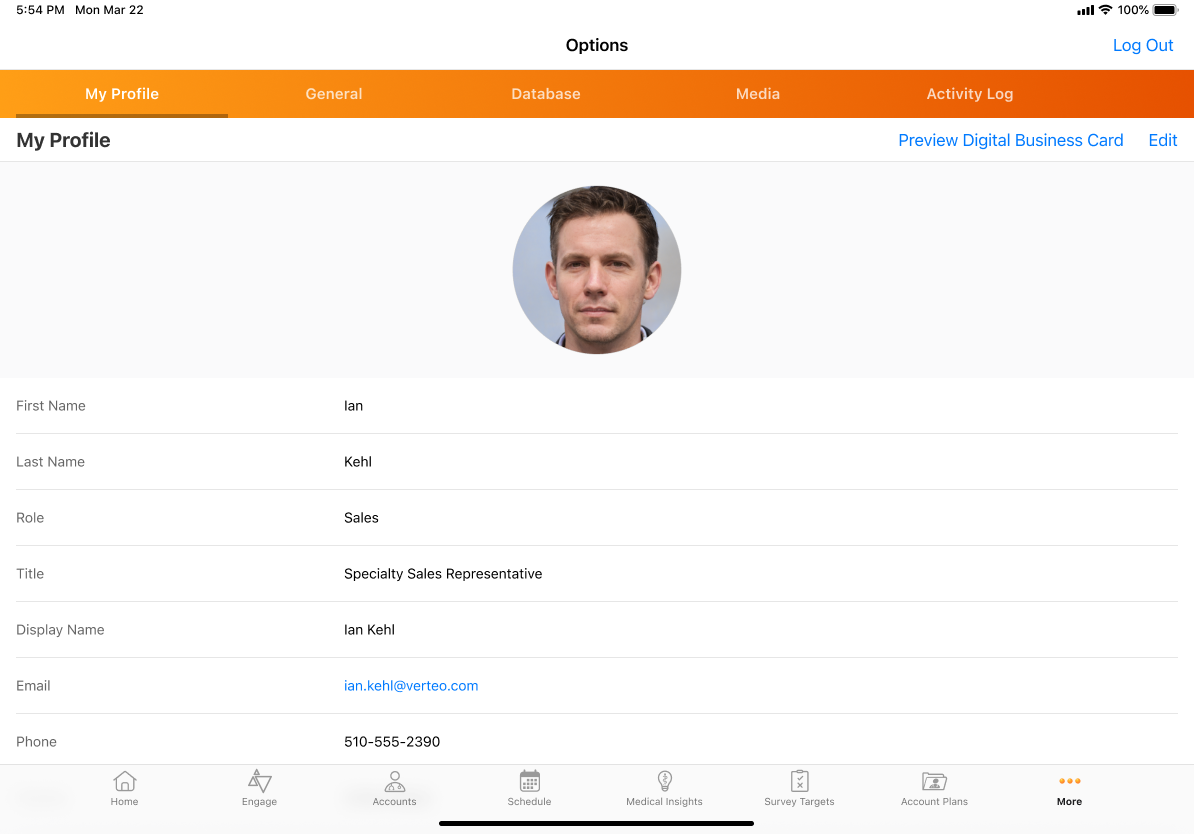
The profile photo a field user uploads to My Profile also displays in any Approved Email communications they send that include the {{userPhoto}} token.
Previewing Cards Before Sharing
Before heading out to his next visit, Ian wants to see exactly what an HCP will see when they view the DBC. From the My Profile screen, he selects Preview Digital Business Card. The DBC displays in the embedded browser in a view-only mode, exactly as it displays to an HCP who isn't signed into Engage. This preview is not tracked as a view, so Ian can check it as many times as he likes without skewing his engagement data.