How do I share my digital business card with HCPs?
Ian's DBC is polished and ready. Now he needs to know how to actually get it in front of her HCPs. The good news is there are several ways to share, and Ian can pick the right method based on the situation he's in, whether he's standing in front of a physician at a conference, following up after a field call, or setting up a quick touch after a new meeting.
Where can I share from?
Ian can send an Engage connection invite, which is a link to his DBC, from several entry points in Vault CRM:
- Chats tab — Select Share Engage Invite Link from the Chats tab. Invites sent from here are not linked to a specific account.
- Share Digital Business Card home page component — Select the component on the home page. Invites sent from here are not linked to a specific account.
- Account Details screen — Select Share Engage Invite Link from the All Actions menu on an HCP's account. Invites sent here are linked to that specific account.
- My Accounts list view — Select Share Engage Invite Link from the All Actions menu for an account in the My Accounts list view. Invites sent here are linked to that specific account.
- Engage profile indicator — If configured, select Share Engage Invite Link from the Engage profile indicator on an account. Invites sent here are linked to that specific account.
Account linking matters for reporting. When an invite is sent from the Account Details screen or the My Accounts list view, it’s linked to that specific HCP account. This means Ian's manager can see which HCPs received connection invites directly on the account timeline.
How should I share it?
Once Ian selects Share Engage Invite Link from any of these entry points, a sharing options modal displays.
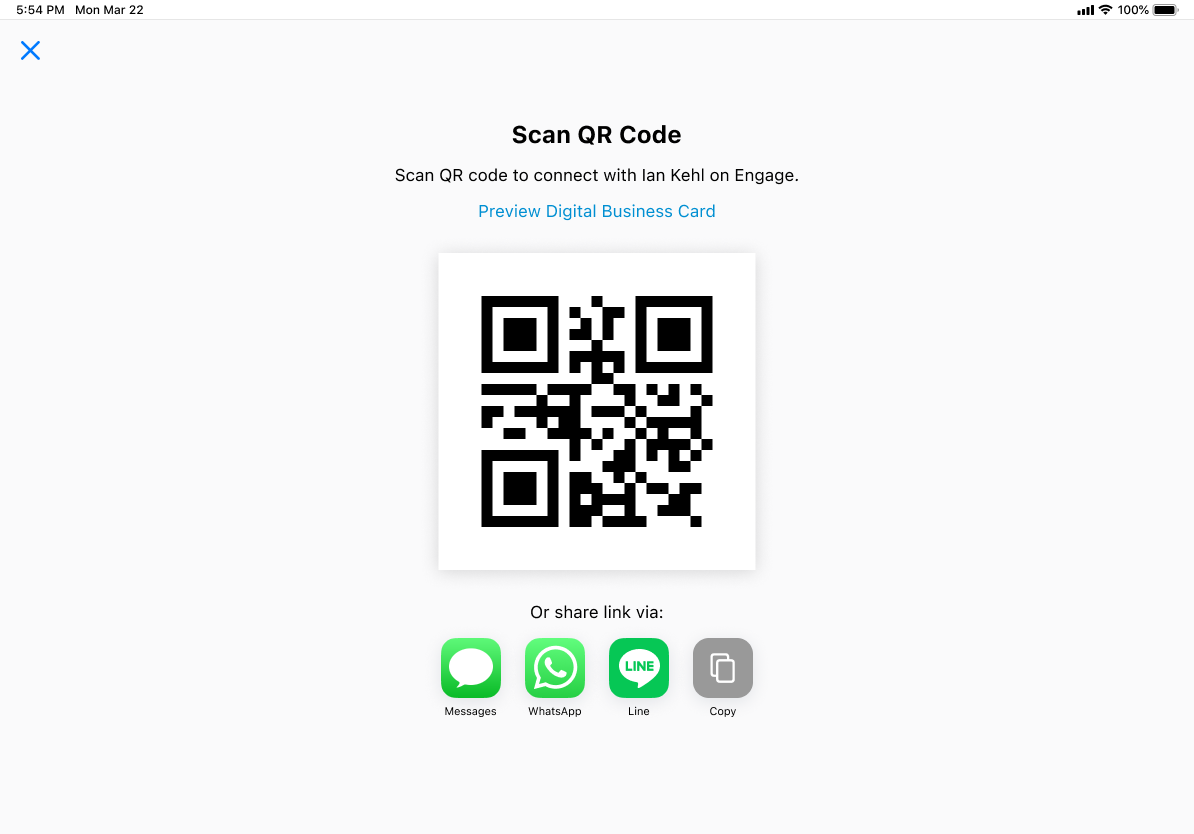
He can pick the method that fits the moment:
- QR Code — Displays a scannable QR Code on screen. Great for in-person meetings and conferences.
- Add to Apple Wallet – iPhone users can also save their DBC as a pass in Apple Wallet. This means the QR code is available even without opening Vault CRM. The Wallet card displays your company branding and a scannable QR code.
- Messaging Apps — Send the link via Messages, WhatsApp, LINE, or LINEWORKS
- Copy — Copies the invite link to the clipboard so it can be pasted into any channel
Ian finishes a conversation about Natevba with Dr. Clinton Ackerman, an HCP he's been trying to connect with for months. Dr. Ackerman is interested but has to leave for another meeting, so Ian quickly opens Vault CRM, selects the Share Digital Business Card component on the home page, and presents the QR code. Dr. Ackerman scans it with his phone and Ian's card is now open on his device.