How does an HCP experience my DBC and how can they share it further?
Understanding what happens after you share your DBC helps you make the most of the Digital Business Card in your conversations. Let's follow the experience from the HCP’s perspective.
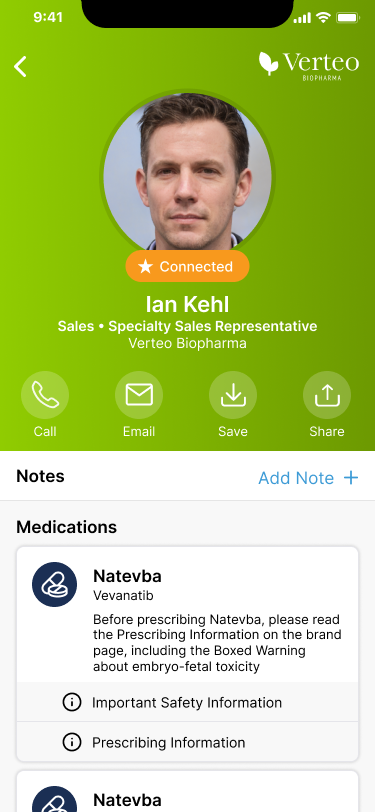
After Dr. Ackerman scans the QR code for Ians DBC, it opens immediately in his browser. Dr. Ackerman sees Ian's professional photo, along with his name, role, title, company name, and the brands Ian represents. He can also see Ian's phone number and email address.
What can an HCP do from my DBC?
Even without an Engage account, Dr. Ackerman has several useful options right from the DBC. He can select Ian's phone number to call him directly, select the email address to compose an email, or select Save Contact to add Ian's details to his device's address book. He can also select any regulatory links to view brand information in his browser.
What he can't do without signing in is chat with Ian or schedule a meeting through Engage. The moment he selects Chat or Schedule, he’s prompted to sign up for Engage or sign in if he already has an account. Once he does, he’s automatically connected to Ian.
Meanwhile, back in Vault CRM, Ian's activity data is already updating. Every time his DBC is viewed, including anonymous views by HCPs who aren't signed into Engage, the activity is captured in Vault CRM and tracked as anonymous activity in the Rep Profile Activity Report, giving Ian's manager visibility into engagement without any manual effort from Ian.
How can an HCP share my DBC with their colleagues?
Dr. Ackerman has a colleague, Dr. Christine Beacher, who he thinks would benefit from connecting with Ian about Natevba. Dr. Ackerman doesn't need to ask Ian for another link — he can share the card himself, directly from the Connections tab in Engage.
In the Engage app, he navigates to the Connections tab and finds Ian's profile. He selects Share and a modal displays with several sharing options. If Dr. Ackerman is signed into Engage, he can use Send Chat to send Ian's DBC link as a contact card to Dr. Beacher directly via chat. He can also use Share Link to send it via any messaging app on his device, or he can download the QR Code as an image to share or display on screen.
Dr. Beacher receives the link and opens Ian's DBC. She’s not yet connected to Ian, so she selects Connect to initiate a connection. Ian receives a notification and accepts the connection.