
Congrats!
You’ve learned the fundamental concepts of scheduling meetings using the appointment booking site and how it will help your field reps coordinate meetings with HCPs more often.
Learn More About Engage
Now that you know how to use the appointment booking site to benefit your organization, you might be interested in learning more about the details of scheduling meetings. You can start here:
Flight Simulator
Let’s practice! Now that you’ve been introduced to the basic concepts of Engage scheduling, try these challenges in your sandbox Vault CRM instance.
Challenge 1: Block time off in My Schedule
Let’s say you’re a sales rep who wants to schedule a meeting with an HCP. Before you can share your availability with the HCP, you have to make sure to block off all the time during which you're not available on the appointment booking site.
Create unavailable times on your calendar in My Schedule. Try blocking off different lengths of time, for example, a few hours, a whole day, or multiple days.
 Solution
- Select the plus button to add an event to My Schedule.
- Select Add Unavailable Time.
- Select the All Day toggle to block off the entire day.
- Select the start date to display the calendar selector.
- Scroll to the appropriate date.
- Select the end date to display the calendar selector.
- Scroll to the appropriate date.
- Select Save to update your calendar.
Challenge 2: Send a link to your availability
Now you can share your updated availability with an HCP. Send an Approved Email to a test account using an email template containing the link to the appointment booking site. Make sure you send the link to an email address that you can access.
Solution
- Select the All Actions button from the HCP's account.
- Select Send Email.
- Select the appropriate email template.
- Select the opened email template.
- Ensure the link to the appointment booking site is included in the email.
- Send the email.
Challenge 3: Request a meeting
Now you're the HCP who received the link to the appointment booking site. Open the link in the email and submit a meeting request.
Solution
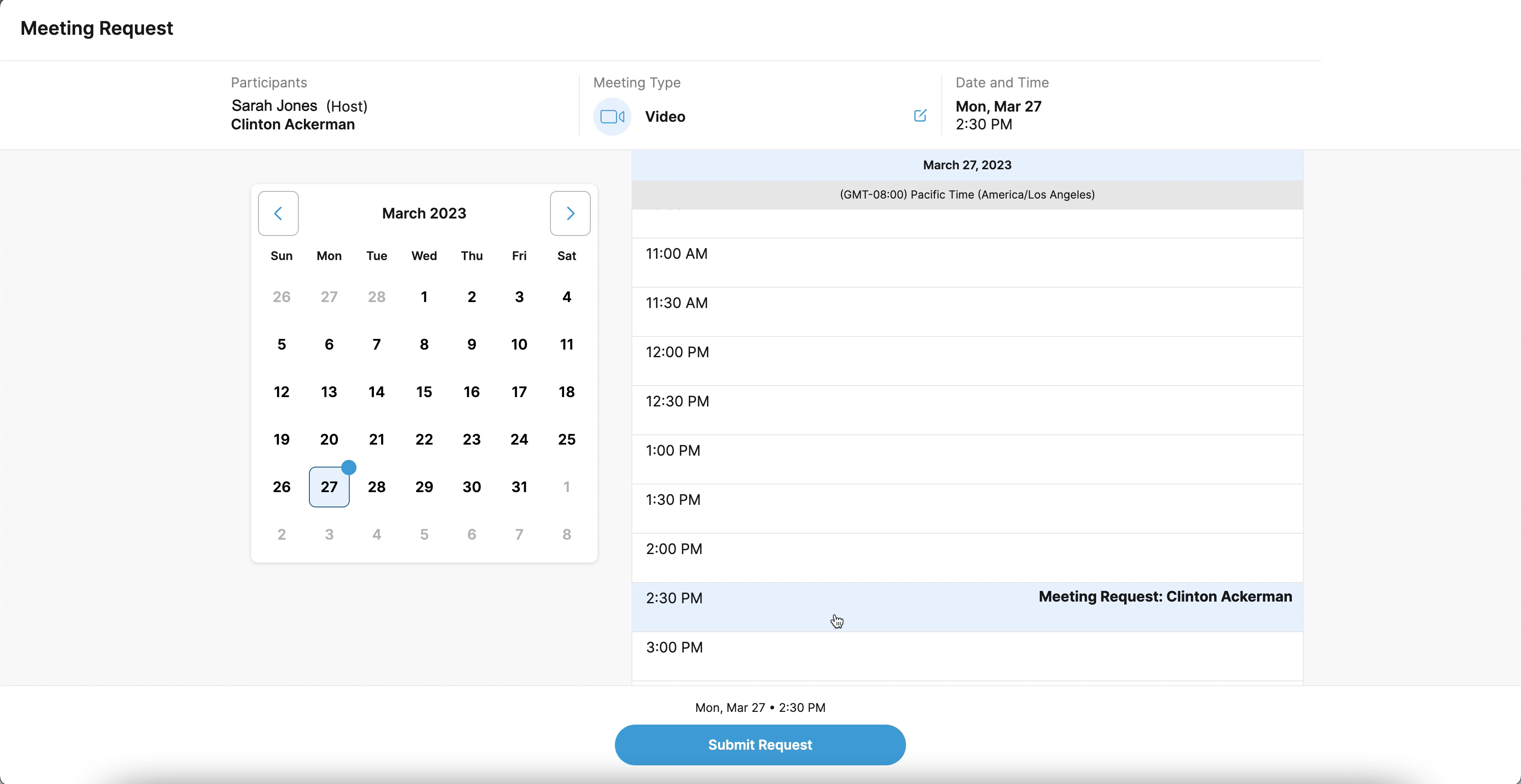
- Select the link to the appointment booking site in the email.
- Select the Meeting Type.
- Select the date and time for the meeting.
- Select Submit Request.