How does the 24-Hour Customer Service Window work?
When an HCP responds to a message template, a rolling 24-hour customer service window begins. During this time, users can send free text messages, text only message templates, and links to media.
Let’s follow Larry Lakes, an MSL at Verteo Biopharma to see the 24-hour window from open to close.
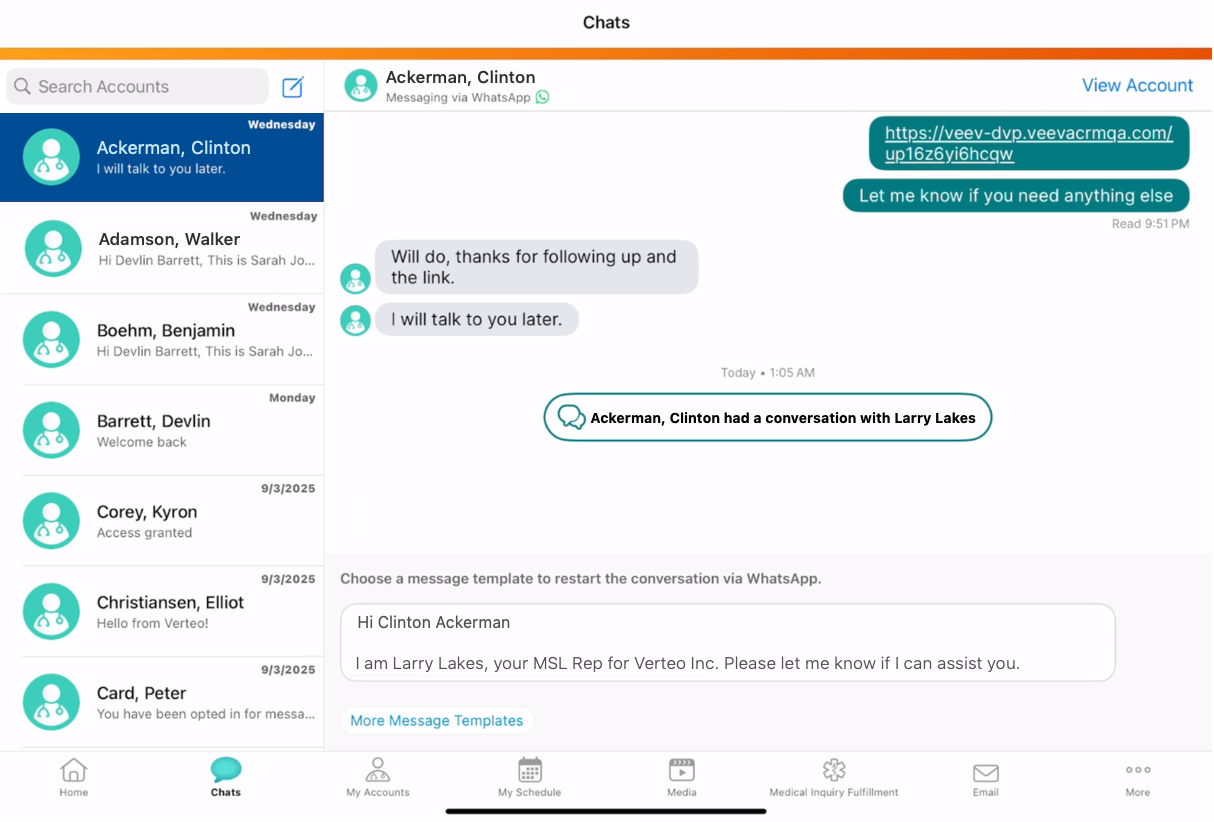
Step 1: Initiate a conversation via Meta-approved message template
Larry navigates to Dr. Ackerman’s chat thread in Vault CRM. There is no active conversation so the text box is disabled. Larry sends the Meta-approved message template to initiate their conversation.
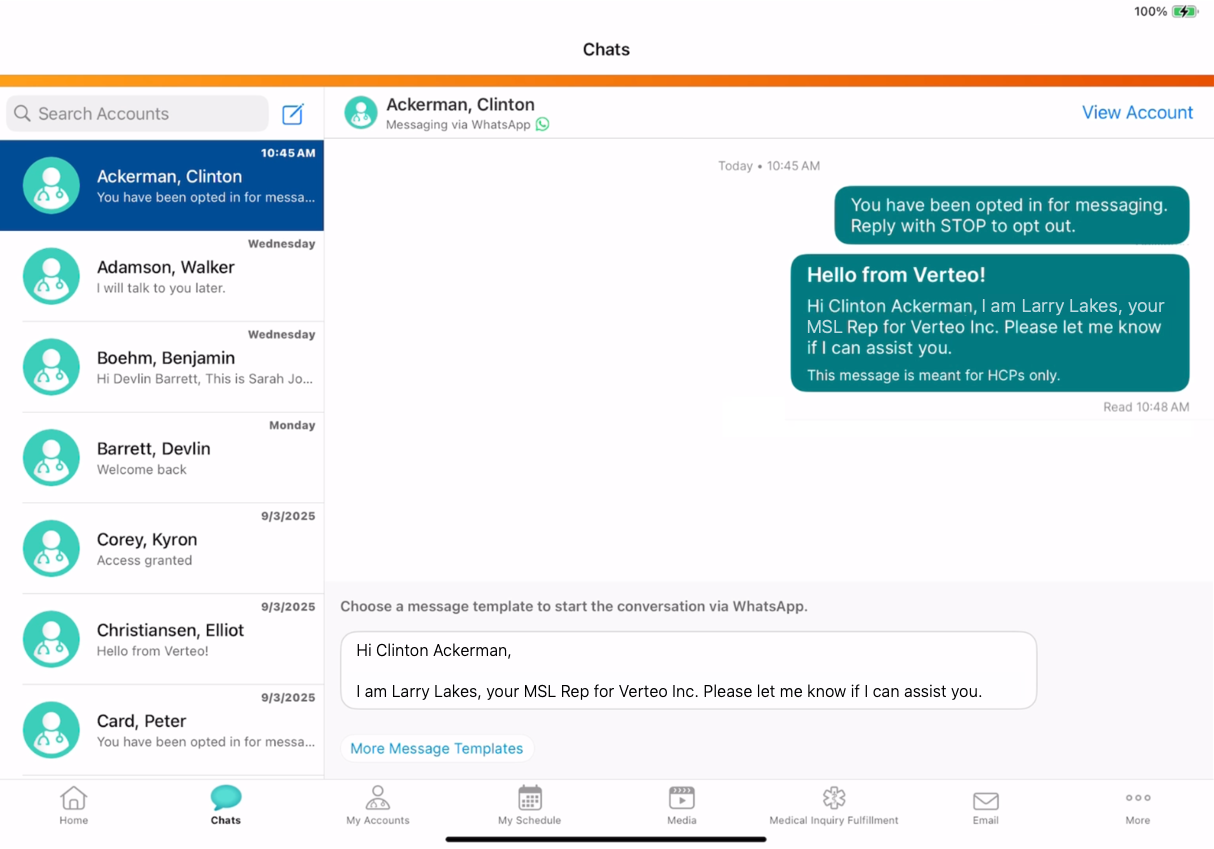
Step 2: Chatting during the active window
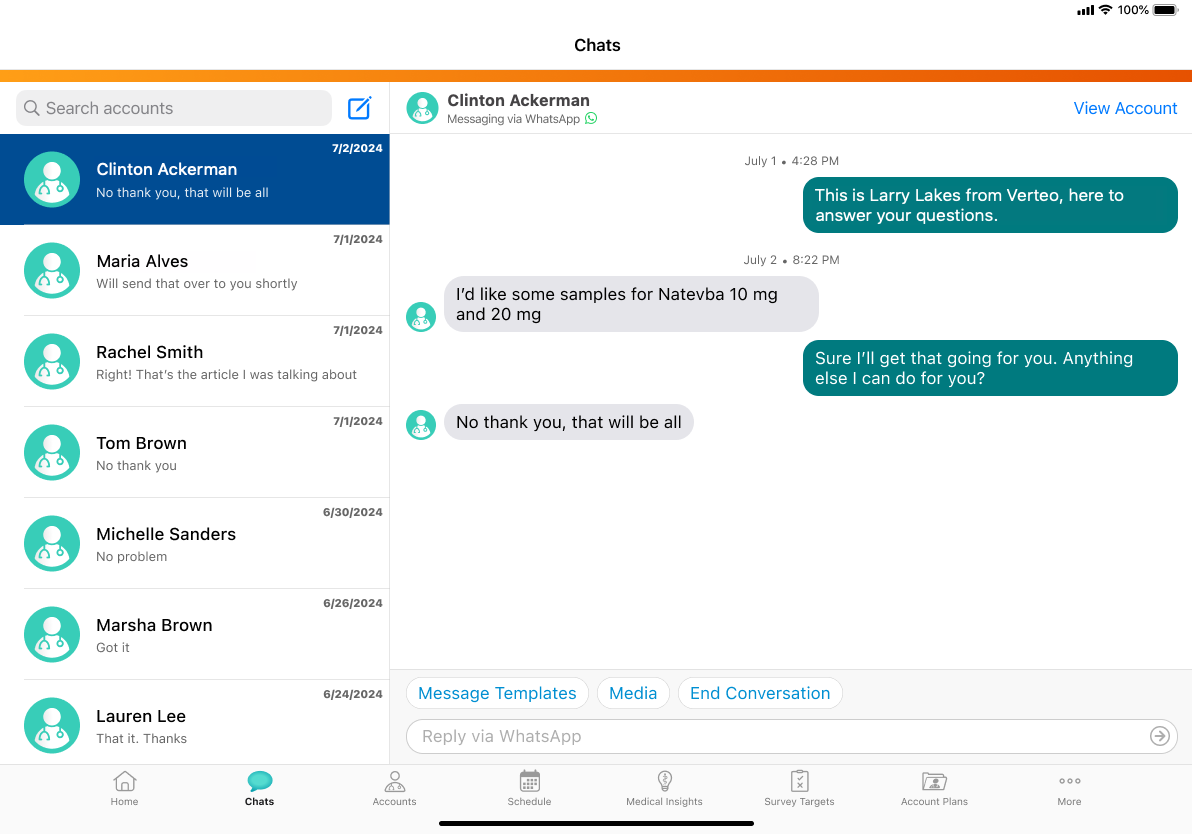
Dr. Ackerman responds to Larry’s message, which opens the rolling 24-hour customer service window during which Larry has more ways to respond to Dr. Ackerman’s message:
-
Free Text Messaging - Type and send personalized, non-templated text messages
-
Text Only Message Templates - Respond quickly and easily using message templates. Field users can select the Message Templates button to view all available message templates.
-
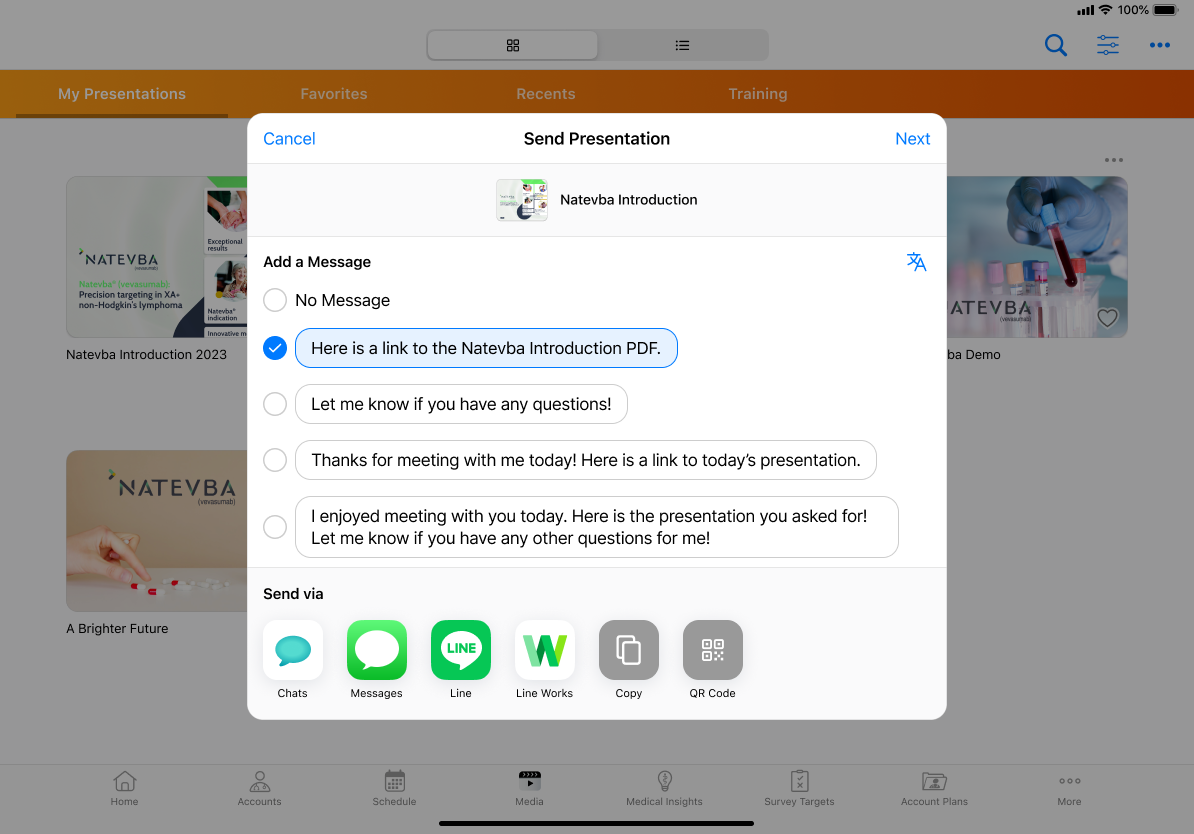
CLM-Specific Message Templates - Compliantly share CLM web links accompanied by CLM-specific message templates. Field users can select the Media button to view the content available for sharing in their media library.
As Larry and Dr. Ackerman chat, each response from Dr. Ackerman resets the 24-hour window. Once the conversation ends, a warning displays when less than 12 hours remain in the window.
Free Text Messaging
CLM Content Sharing
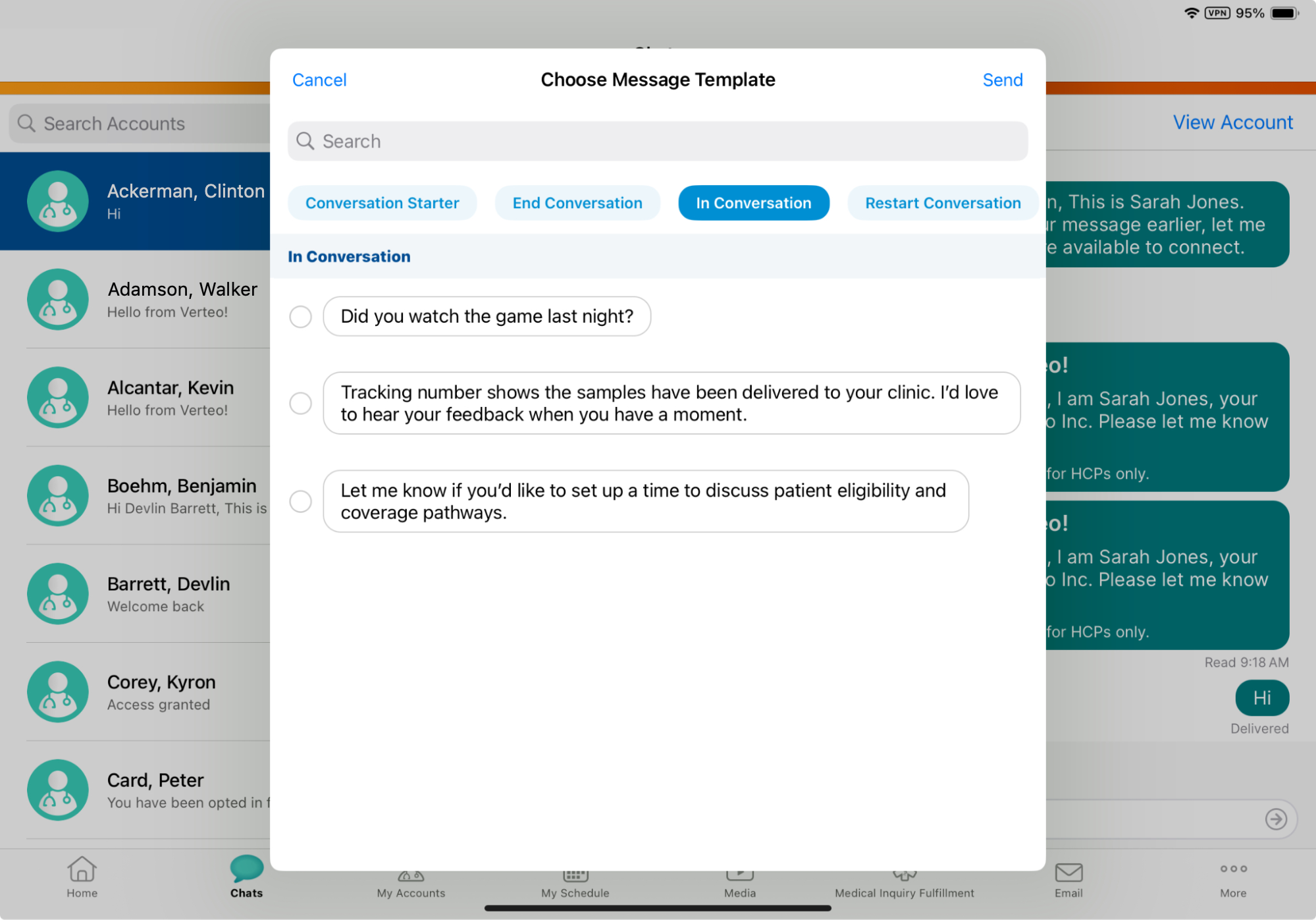
Text Only Message Templates
Step 3: Re-initiating an expired conversation
24 hours pass without a message from Dr. Ackerman, so the 24-hour customer service window closes.
A banner indicates that the window has expired. To message Dr. Ackerman again, Larry must send another Meta-approved message template.