How do I add attendees to an event?
Let’s track the journey of an event invite. You’re an event organizer and you want to add attendees to a speaker program you’re planning. You’ve scheduled and created an event, so now you can use the Attendees related list to add attendees to the event. Event attendees can include person accounts, business accounts, or even other Vault CRM users.
To add attendees to an event:
-
Navigate to your event in Vault CRM.
-
Select the Attendees tab.
-
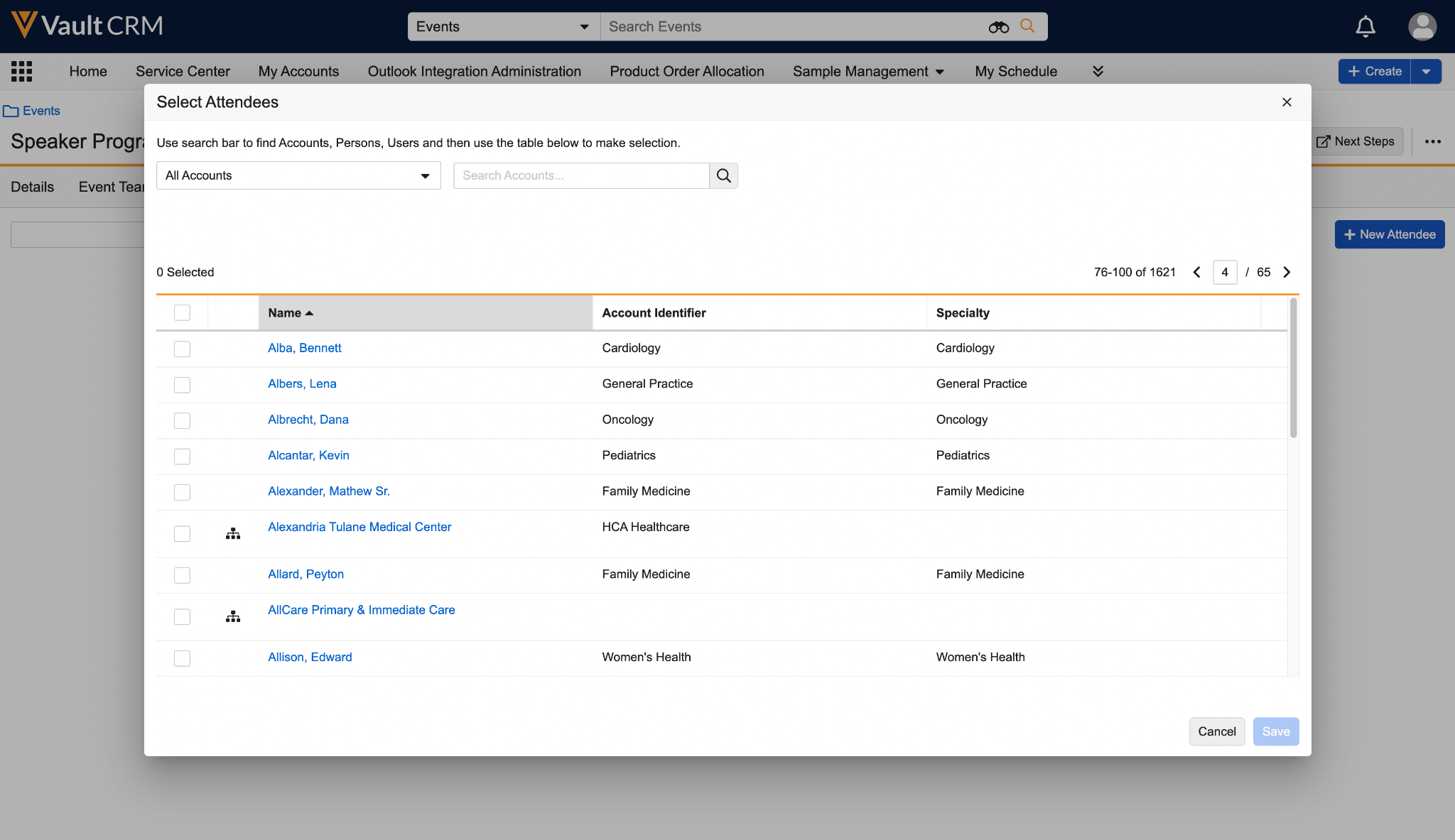
Select New Attendee. The Select Attendees modal displays all available person accounts, business accounts, and users you can add as attendees based on the selected view. Attendee fields display based on the configured event attendance rule.
-
Enter the search criteria to locate Account, User, or Person records.
-
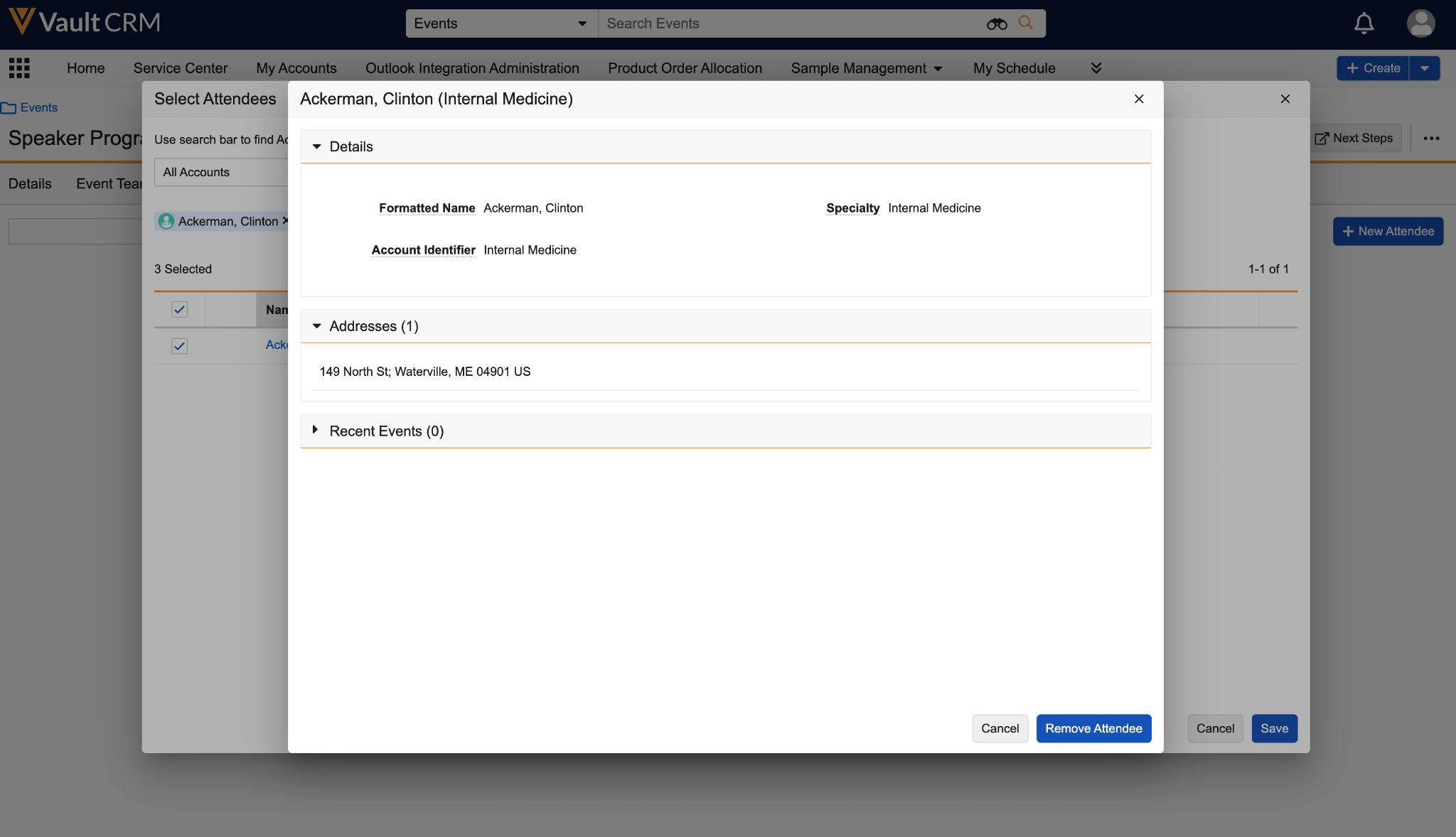
Select an attendee’s name to view their details. This is optional, but can help you decide if you want to invite the attendee or not. Select Cancel when you’re done to return to the attendee list.
-
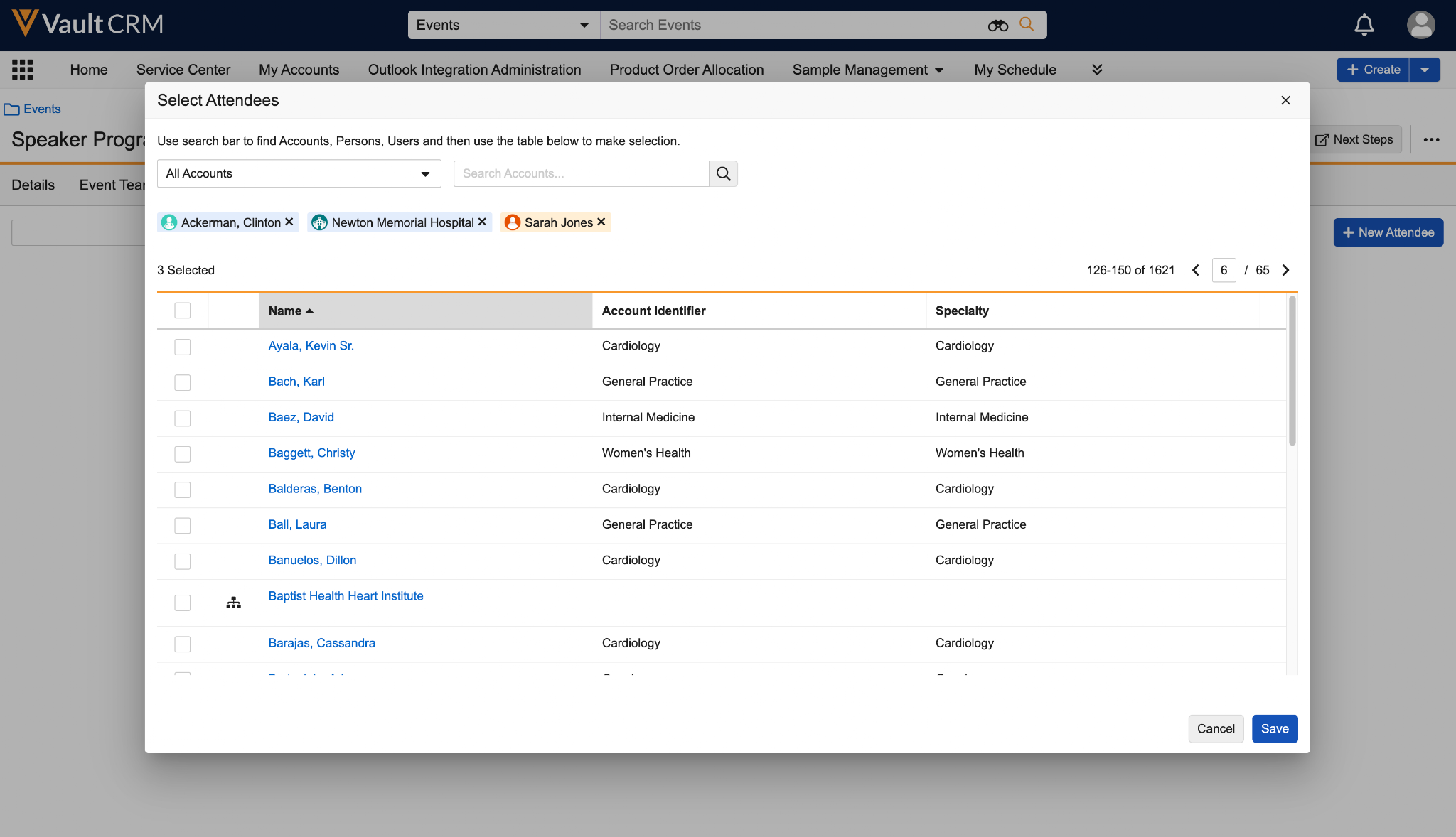
Select the checkbox next to an attendee to add them to an event.

Once you add an attendee, they display in the modal as a color-coded pill at the top of the page. This helps you quickly review which attendees you’ve already added to the event.
-
Select Save to add all of your selected attendees to the event.