What happens when an attendee registers using a forwarded link?
We're the event organizer, and we are tasked with making sense of all these responses coming in. Remember when the admin checked that approval required box on the form? Well, because of that, our attendees now take two totally different paths.
Our targeted attendees, the ones we specifically invited, they breeze right through. They're automatically approved and the system sends them a confirmation email right away. But our open registrants, those uninvited guests who got a forwarded link, must be manually approved. The system treats them as walk-in attendees that absolutely require manual review.
|
|
Check out the Managing Walk-In Attendees for Events Flightpath to learn more about handling these attendee types. |

So, how does the event organizer manage all these open registrants? They follow a really clean four-step reconciliation process. They navigate to the reconciliation page, select the open registrant from the list, search the Vault CRM database to see if this person already has an existing account profile, and then they just confirm the match to link this new registration to the existing CRM record.
To reconcile open registrants to existing accounts in Vault CRM, you must match them manually before they can be approved for the event. Don’t worry, this is easy to do!
- Navigate to the Attendee Reconciliation page within the specific event.
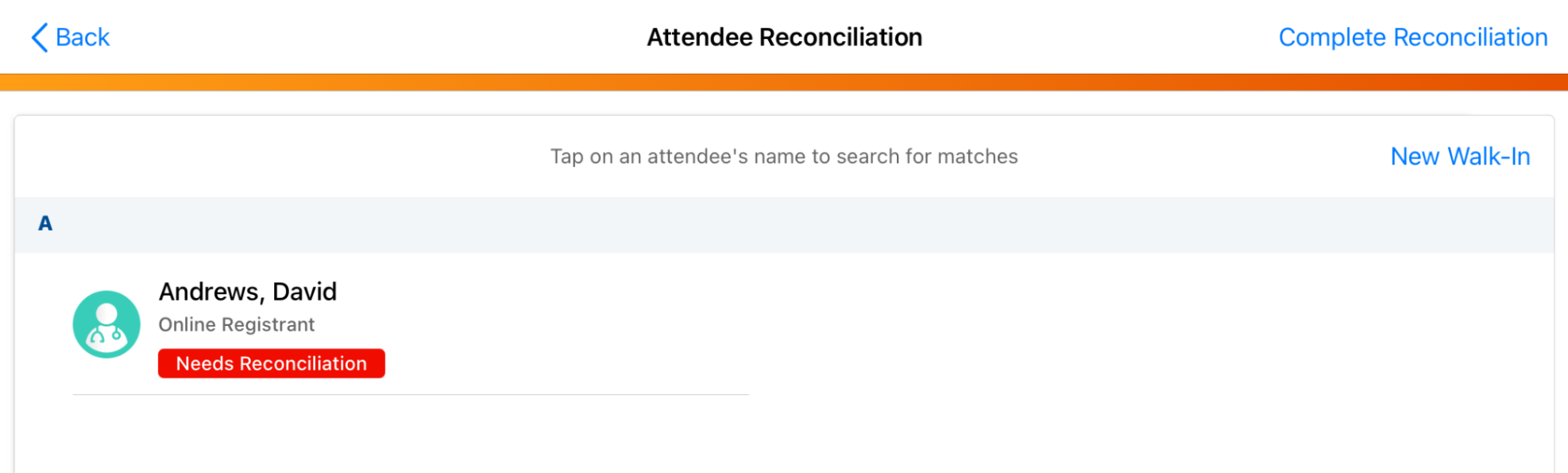
- Select the open registrant you want to reconcile.
- Search for the appropriate matching account.
- Select Confirm Match to link the registrant to the account.
|
|
Similar to searching for attendees outside your territory, your admin may have configured filters that restrict your search results to specific account types or accounts within specific countries. |
Once the organizer updates the attendee status field to either approved or rejected, the system automatically fires off the appropriate confirmation or rejection email that our admin set up at the very beginning of our journey.