How do I build an approval process?
Approvals are built within Vault Workflow configuration. Each workflow is made up of several component types — Participants, Decisions, Tasks, Actions, and Notifications that you assemble into a flow matching your organization's approval process.
Creating the Object Workflow record
You will need a workflow for each approval process. You can set up different workflows for each event type or country. To start creating the workflow:
- Navigate to Admin > Configuration > Workflows.
- Select Create.
- Select Object Workflow for the Workflow Type and select Continue.
- Populate the Label and Name fields, then select Event Lifecycle in the Lifecycle field.
- Ensure the Use workflow for single object record check box is selected, and leave all other options deselected.
- Select Save.
Defining Participants
Now that you have your Object Workflow, the next step is to define participants. Participants determine which users or groups are responsible for approving the event. They are defined in the Start Options within the Start step.
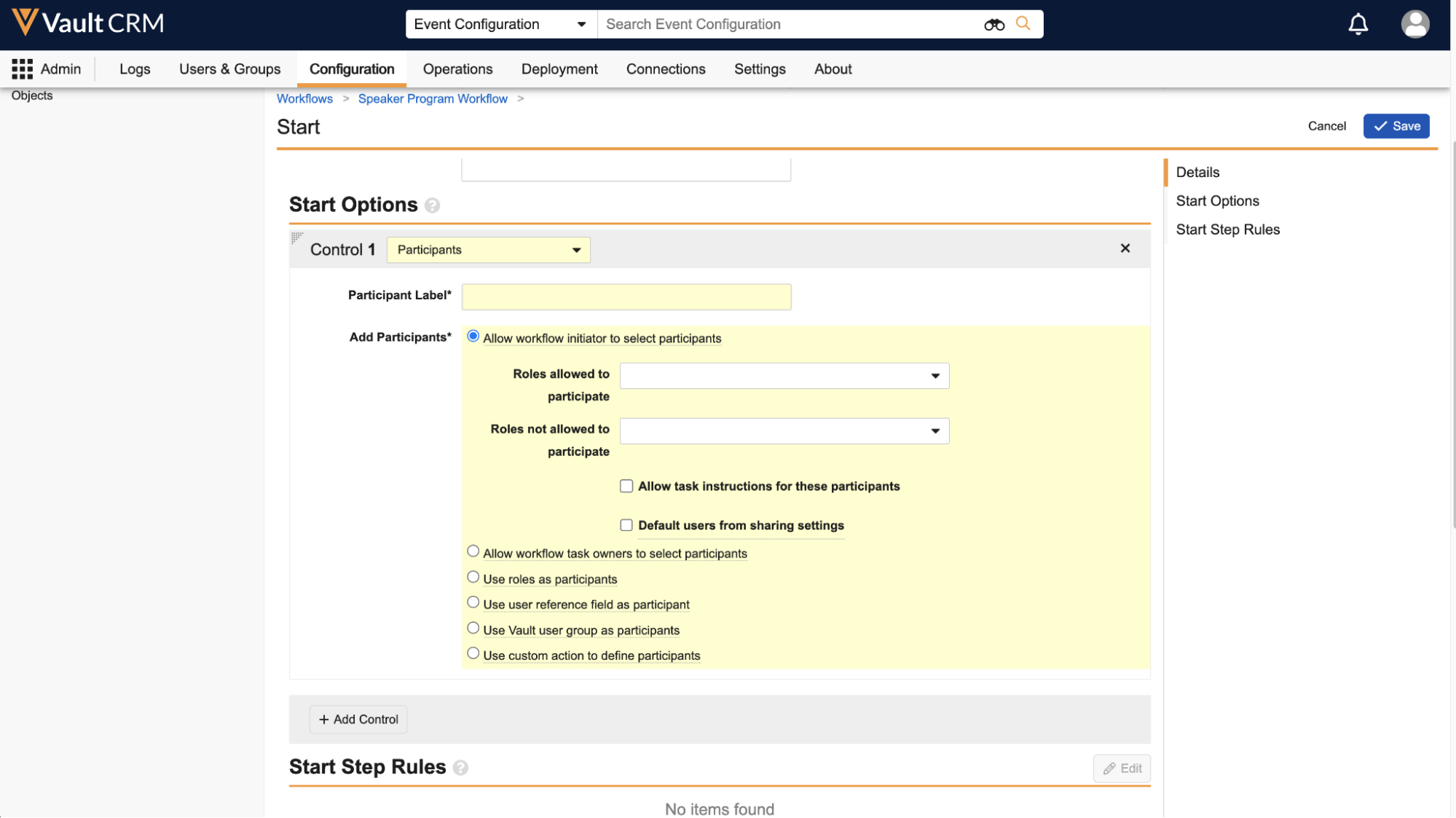
The following options are available:
- Allow workflow initiator to select participants – The event organizer who submits the event for approval is immediately prompted to choose the next approver. This is the right choice when the submitter should always manually designate a reviewer.
- Allow workflow task owners to select participants – The event organizer is assigned a task directing them to select the approver. This is recommended when manually designating a reviewer is dynamic based on a Decision step.
- Use user reference field as participant – Utilizes a specific user from a configured reference field. For example, this could automatically assign the task to the event owner's manager.
- Use Vault user group as participants – Assigns an entire Vault Group as the participant pool for the task. This is used when the Marketing team or Compliance team is responsible for approving the event.
Building Workflow Steps
Once participants are defined, you must create the steps that make up the approval flow. Each step has a type that determines its behavior.
Decisions
Decisions evaluate field values or task verdicts and route the workflow down different paths based on your defined rules within a Decision are evaluated in order, so ensure you configure rules in the appropriate order.
If you have requirements to validate event attributes when an event is submitted, it is recommended to create a Decision at the beginning of the flow. For example, you could create a Decision that only proceeds with the approval if the event has correctly entered their estimated attendance and event format. Else, it returns the submission back to the organizer to correct and resubmit.
Tasks
Tasks are actionable items assigned to Participants that must be completed to advance the workflow. Tasks can include prompts for comments and verdicts, such as Approving or Rejecting, which then affect the approval path based on Decision steps. There are two distinct types of tasks that are centered around approvals:
-
Tasks for approvers – These are assigned to the participant group you defined in the Start step. The recommended assignment option for most approver tasks is Make available to users in participant group, which presents an Accept action and requires one user to first claim and then complete the task.

This is also the only assignment option that supports delegate approvers.
- Tasks for event owners – These prompt the event owner to select the next approver when the workflow requires manual participant selection. This task must have Prompt for Participants selected and the appropriate Participant that has Allow workflow task owners to select participants configured . Assign this task to the Workflow Owner.
When adding prompts to a task, only Prompt for Participants, Prompt for Comments and Prompt for Verdicts are supported.
Actions
Actions automatically fire when reached in the workflow and can update fields or related records on the event.
For example, if the approver approves the event from a preceding Task, the subsequent action will change the event’s status to Approved.
Notifications
Notifications send an email to a defined recipient or group using a notification template when a particular step in the workflow is reached.
For example, if an approver rejects the event via a preceding Task, a notification will be sent informing the event owner of the rejection.
The Entry Criteria Not Met System Action
Every Object Workflow you build for Events Management must include exactly one System Action step configured as Entry Criteria Not Met. This step is then referenced as the Else rule in the workflow’s first Decision step. Missing this step is one of the most common configuration errors in Object Workflow-based approval setups.
The purpose of this action is to prevent an event from proceeding through a workflow if it does not meet any of the defined entry critieria.
The Cancellation Action
Cancellation Actions are separate workflow actions that are executed when a workflow is cancelled. In Events Management, these are actions that are run when event organizers recall a submitted approval request, for example, to correct an error on the event before re-submitting.
To create a Cancellation Action, select Create in the Cancellation Actions section of the workflow and create a rule with the following values:
- Condition Type = Always
- Performs Actions = Update field
- Fields = Event Status
- Set to value = requested__v
Configuring Delegate Approvers in the Workflow
To enable delegate approvers, the workflow must meet the following criteria:
- The Participant Control must use one of the following supported options:
- Allow workflow initiator to select participants
- Allow workflow task owners to select participants
- Use user reference field as participant – Select Delegated Approver ID as the reference field
- The relevant workflow tasks must use the Make available to users in participant group assignment option