What does the approval experience look like?
With configuration complete, the workflow is now part of the event lifecycle. Here's what it looks like in practice.
Submitting an event for approval
When an event is ready for review, the event organizer selects the configured action, for example Submit for Approval, from the event's All Actions menu.
If the workflow's first step is a task that requires the organizer to select a participant, they are immediately prompted to choose the approver who will handle the next stage of review. Once selected, the workflow advances automatically.
If anything interrupts this process before the organizer selects their approver, for example, a lost internet connection or a device running out of battery, you can easily reinitiate the process by returning to the event and selecting Select Approver from the All Actions menu.
The approver's experience
When a task is assigned to an approver, a banner displays on the event record informing them that their action is required. They may also receive an email if a Notification step is configured.

|
While initiating Object Workflows is supported on the iPad, all review and approval tasks are only supported on the Browser platform. |
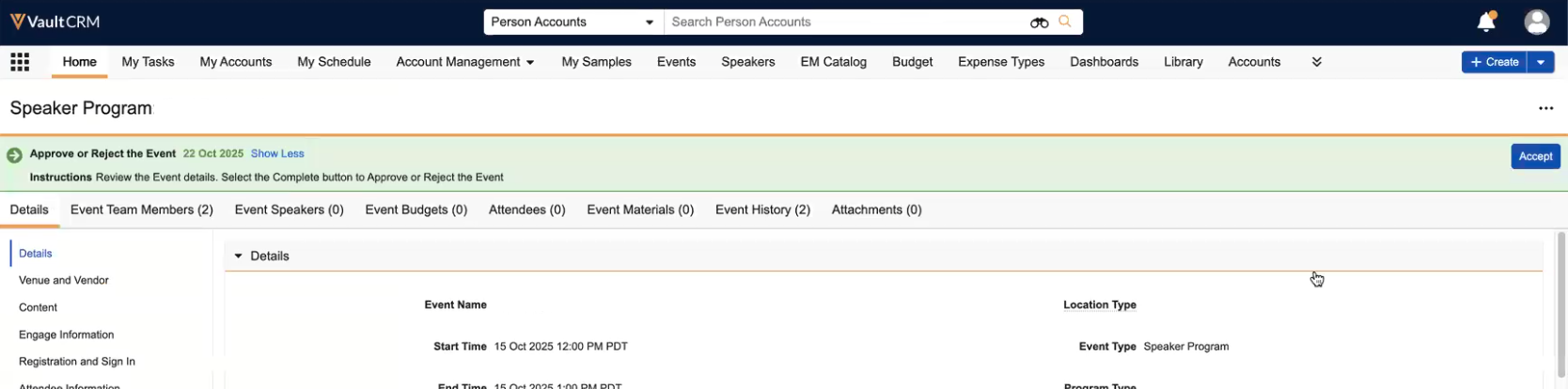
The approver selects Accept or Complete on the banner to open the task, where they can:
- Review the event details
- Add comments (if configured)
- Select a verdict, the common verdicts being Approve or Reject
Completing the task advances the workflow to its next step, which is typically a Decision that evaluates the verdict and routes the event accordingly.
Delegate approvers
If a delegate approver is configured for the assigned reviewer, that delegate is automatically added to the event as an Event Team Member with the same role as the original approver. The delegate can accept and complete the task on the original approver's behalf.
Both the next approver and the designated delegate are visible in the Event History via the next_approver_participant__v and delegate_approver_participant__v fields, respectively.
Recalling an approval request
If the event organizer needs to make changes after submitting for approval, they can select the Recall Approval Request action from the All Actions menu. This triggers the Cancellation Action in the workflow, exiting the workflow and returning the event to its prior status so the organizer can make edits and re-submit.