How do I add materials to my event?
Available materials display in the Event Materials section of an event. Some materials may have been added automatically via rules, but end users can also add materials themselves.
To add a material manually:
- Navigate to your event.
-
Go to the Event Materials section.
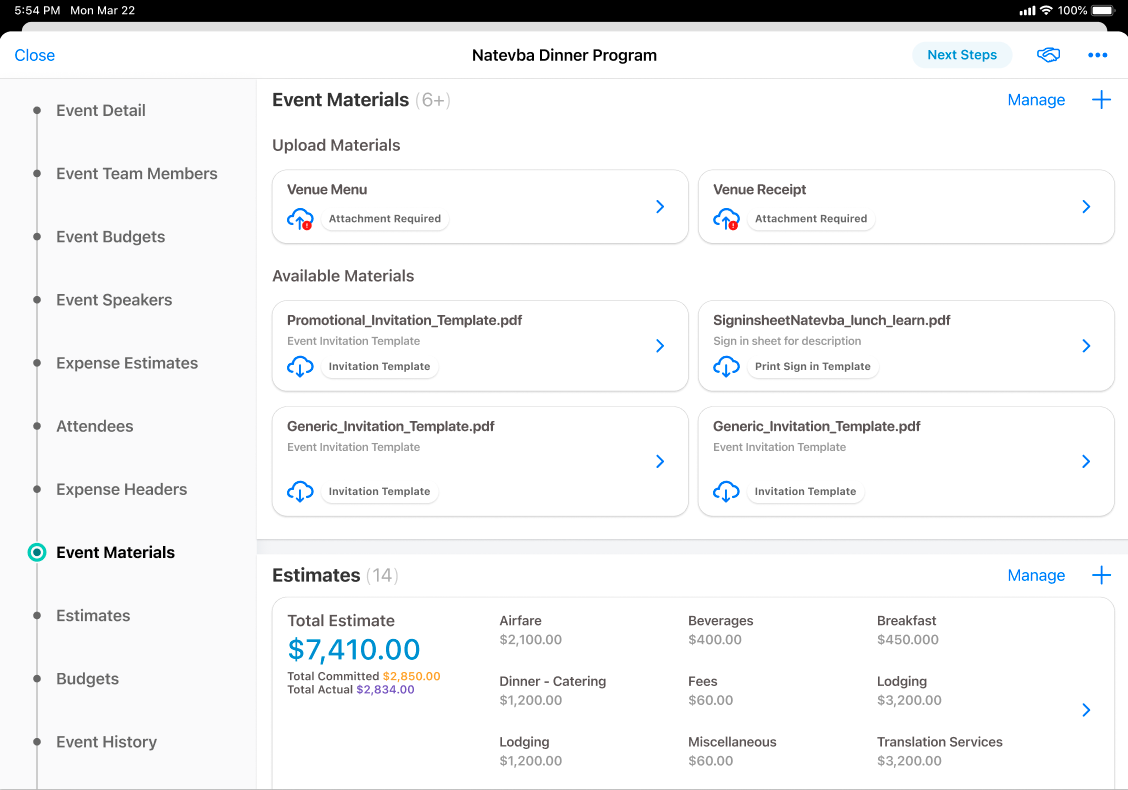
- Select +.
- Select the appropriate object type.
- Use the material lookup to select the catalog record you want. The list filters to show only catalog records matching the type of material you're adding.
- Select Save, or Save + Create to add another material without leaving the screen.
The materials available in the lookup come from catalogs your business admins have already created and approved, so you're always selecting from vetted, ready-to-use resources.
For example, Sarah is planning a speaker program for the cardiology product Cholecap. When she opens her event, she sees that an invitation template tied to Cholecap has already appeared automatically. She adds the speaker presentation deck herself using the steps above.