How do I attach files to an event material?
Depending on the type of material, you may need to upload a file or attachment to its record. For example, a sample plan required before an event is approved, or a receipt you want to keep on file. Files attach directly to the relevant event material, so they're easy to find later.
To attach a file:
- Edit the appropriate event material record.
-
Navigate to its Attachments section.
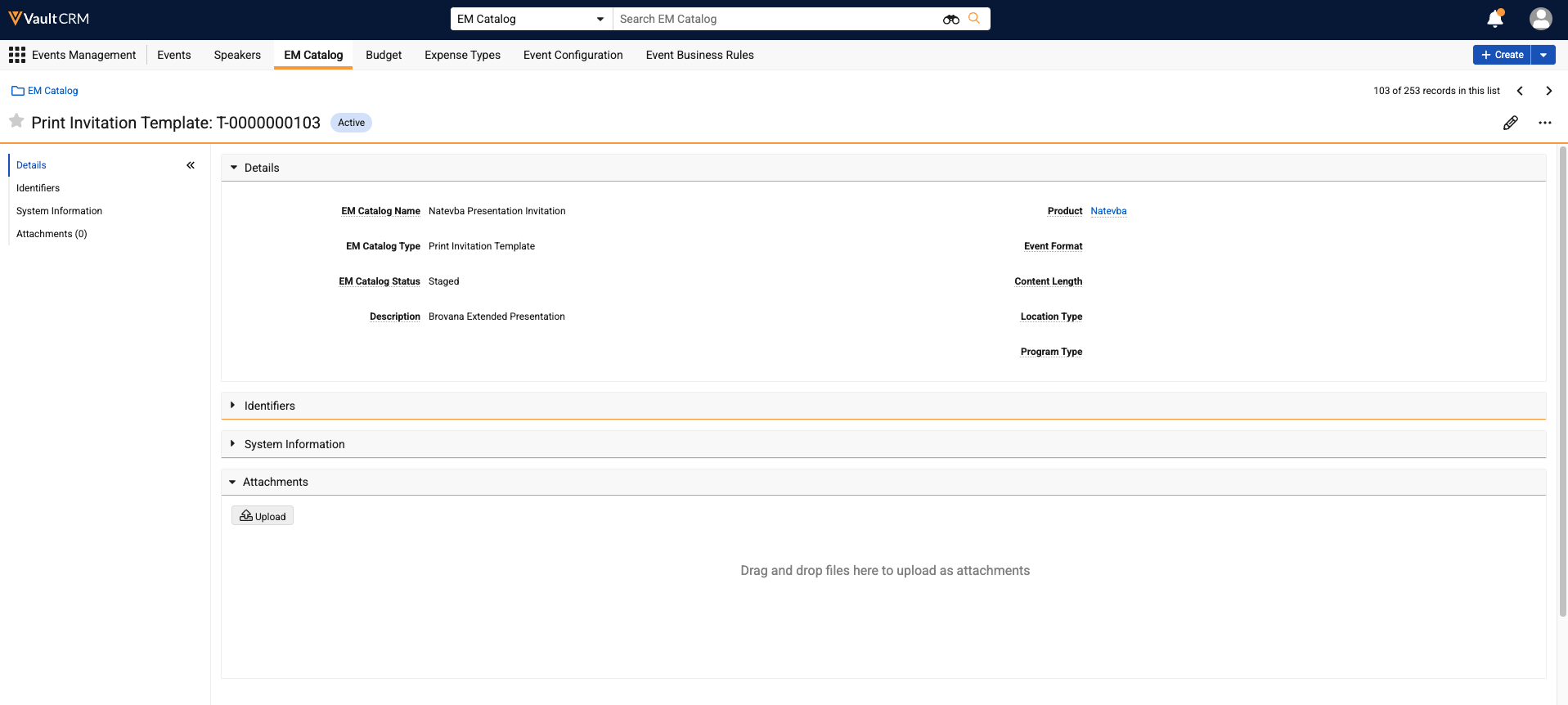
- Select Upload, or drag and drop the file directly into the related list.
Uploaded photos and files display in the Attachments section of the layout.
For example, Sarah's event requires a sample plan before it can be approved, and she also wants to keep the venue receipt on record. She uploads both to the relevant materials well ahead of time, making sure they're in place before the event locks.

|
If your event is locked, new attachments cannot be uploaded. Attach required files before the event reaches that stage. |