How do I nominate a speaker for events?
Organizations can build their roster of speakers through a structured nomination process. End users can nominate new speakers, or "renominate" existing ones, to qualify them to speak about specific products. To maintain compliance, these nominations can be routed through custom Object Workflows, allowing medical and compliance teams to review and approve the speaker before they become eligible.
Users can submit two types of nominations:
- Nominating New Speakers - Users can propose entirely new speakers. When doing so, they can select an existing account to automatically populate the nomination with the person's first name, last name, and title. Submitting this nomination creates a new speaker record with a "nominated" status.
- Renominating Existing Speakers - Users can renominate active speakers to qualify them to speak about additional products or topics
Nominating a Speaker
To nominate a new speaker on the Browser:
- Navigate to the Speaker Nominations tab.
- Select New.
- Select New Speaker for the object type, then select Next.
- Populate the appropriate fields.
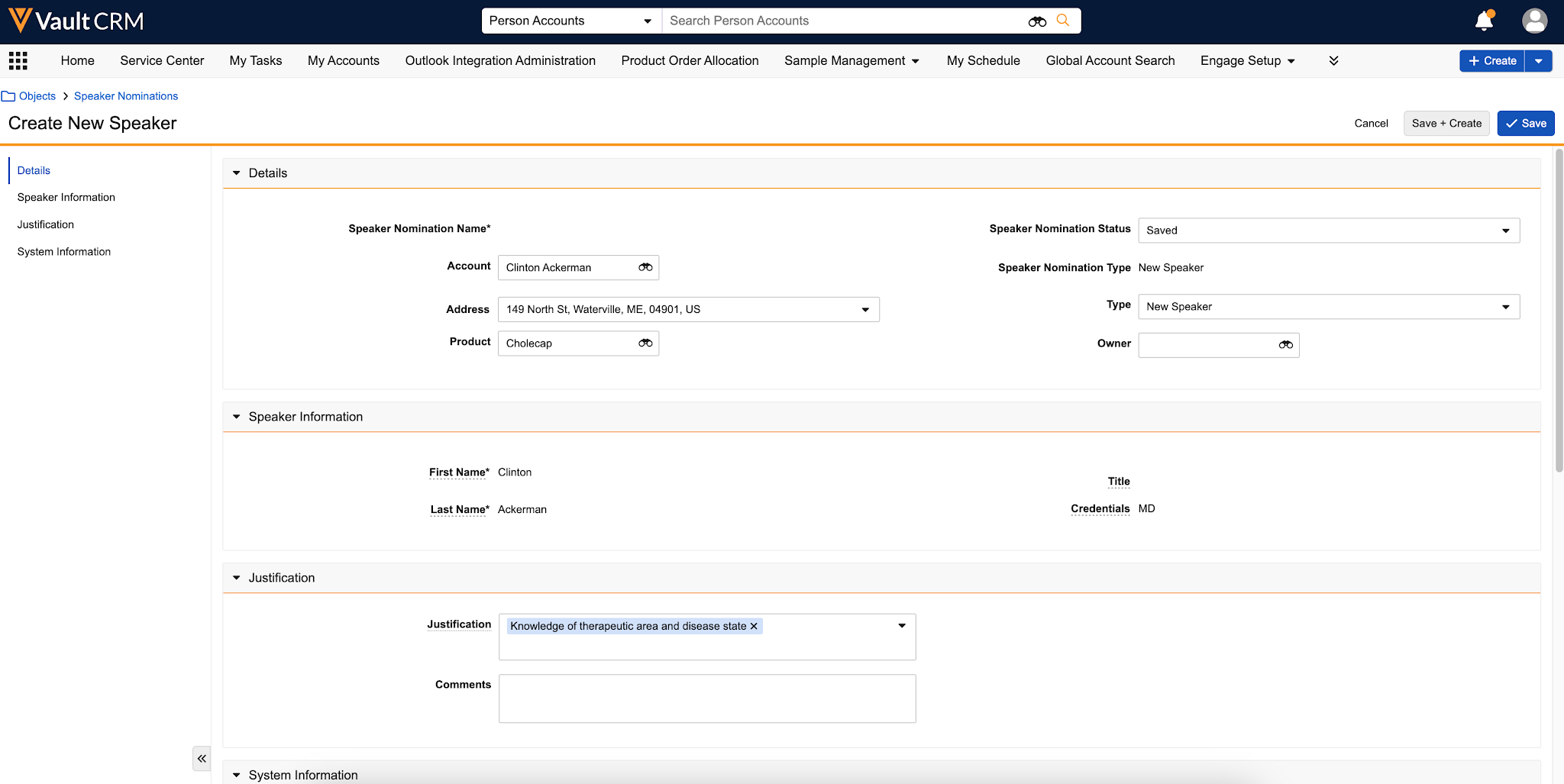
- Select Save.
- Upload any attachments needed for review.
- Select Submit or Submit for Approval if using Object Workflows for Speaker Nominations.
|
|
You can also add a speaker using the Speaker Tab on the iPad. Select the + button in the upper right corner of the Speaker tab to get started. |

Renominating a Speaker
Users can renominate existing speakers to be considered qualified for additional topics:
- Navigate to the Speaker Nominations tab.
- Select Create.
- Select Renominate for the object type, then select Next.
- Populate the appropriate fields.
- Select Save.
- Upload any attachments needed for review.
- Select Submit or Submit for Approval if using Object Workflows for Speaker Nominations.