How do I reconcile walk-in attendees after my event?
An event cannot be closed until all walk-in attendees have been reconciled to accounts in Vault CRM. Reconciliation is the process of linking each walk-in record to the correct account—or handling it in another way, such as dismissing it or creating a new account.
-
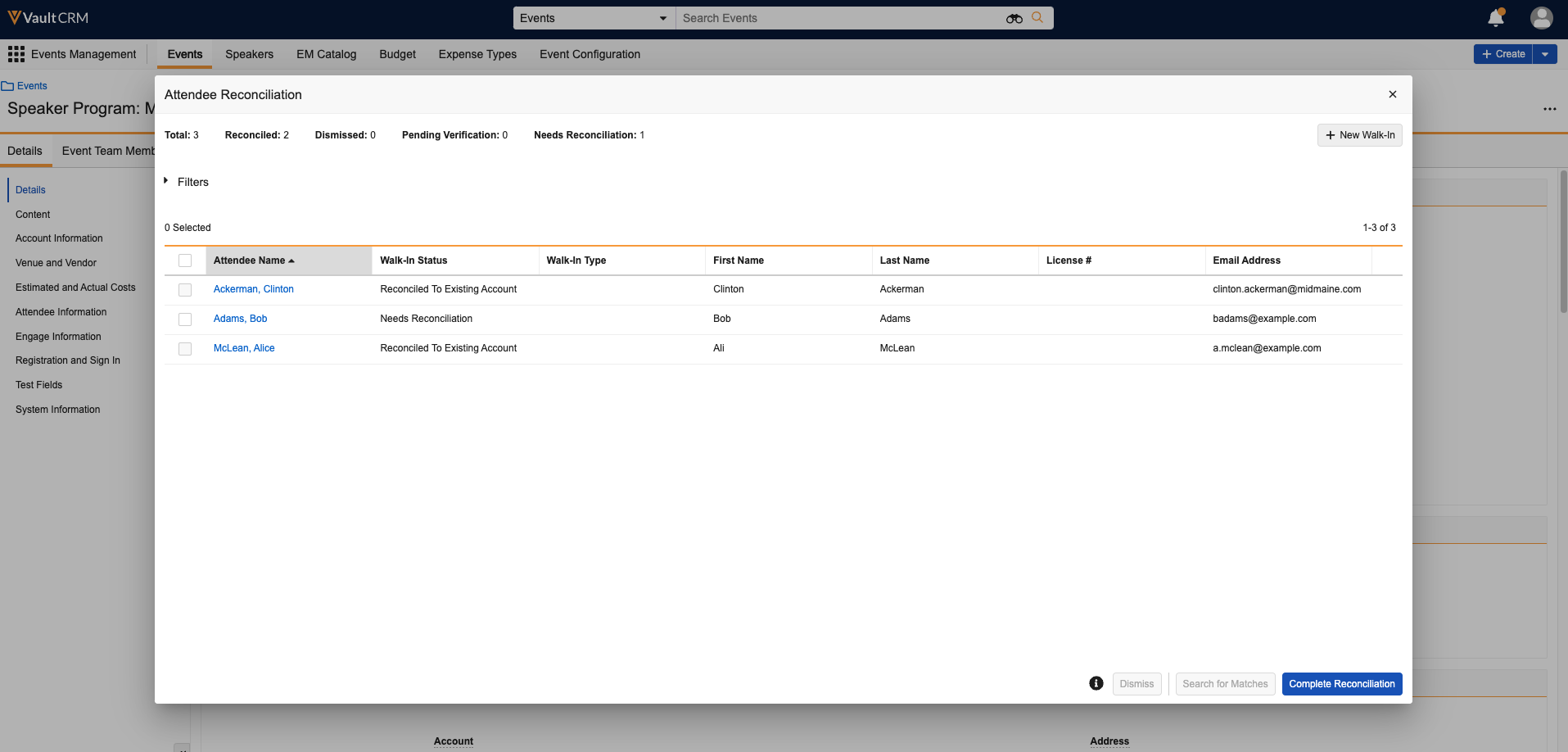
Open the event and select the Attendee Reconciliation button. This opens a modal displaying all walk-in attendees for the event. You can filter this list by walk-in status or type to help manage larger groups.
-
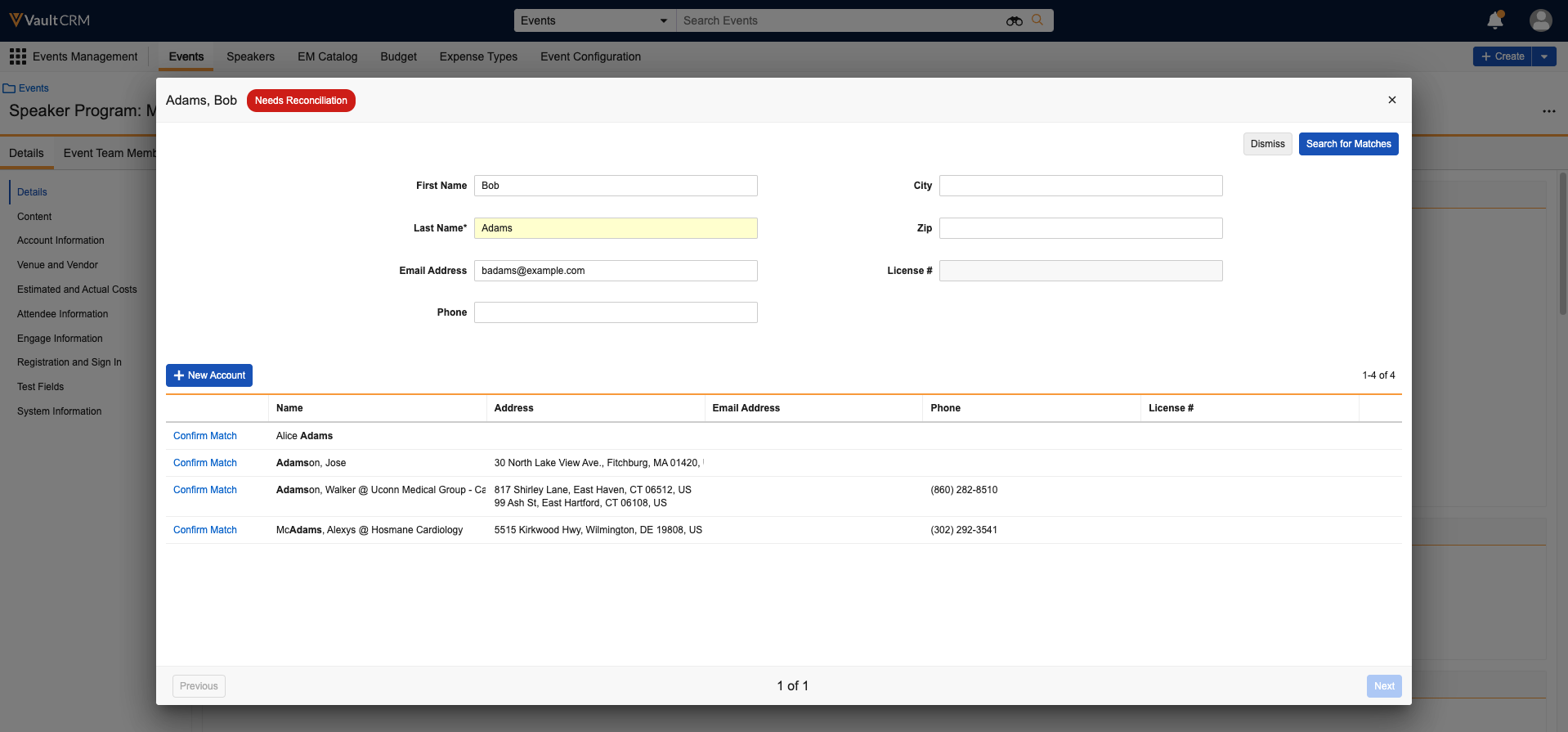
Select a walk-in attendee and choose Search for Matches. Vault CRM runs a weighted search against existing accounts, then displays a list of potential matches.

Did you know you can define the fields and weights for those fields used when searching for matches? See Customized Scoring and Matching When Reconciling Walk-in Attendees for more information!
-
Review the results and select the correct account to complete the reconciliation for that attendee. If the walk-in is not associated with any account in the system, you can select Dismiss instead.
If you have several walk-ins to process, you can select multiple records at once using the checkboxes and run a batch search for matches. This is useful when reconciling larger events.
Once all walk-ins have been handled, select Complete Reconciliation. Vault CRM marks the reconciliation as complete on the event record, giving managers and admins visibility that the event is ready to close. If you select Complete Reconciliation while some walk-ins are still unresolved, those remaining walk-ins are automatically dismissed.