How do I use Hierarchy Explorer?
At its core, Hierarchy Explorer is a widget designed for exploration.
The top-down approach
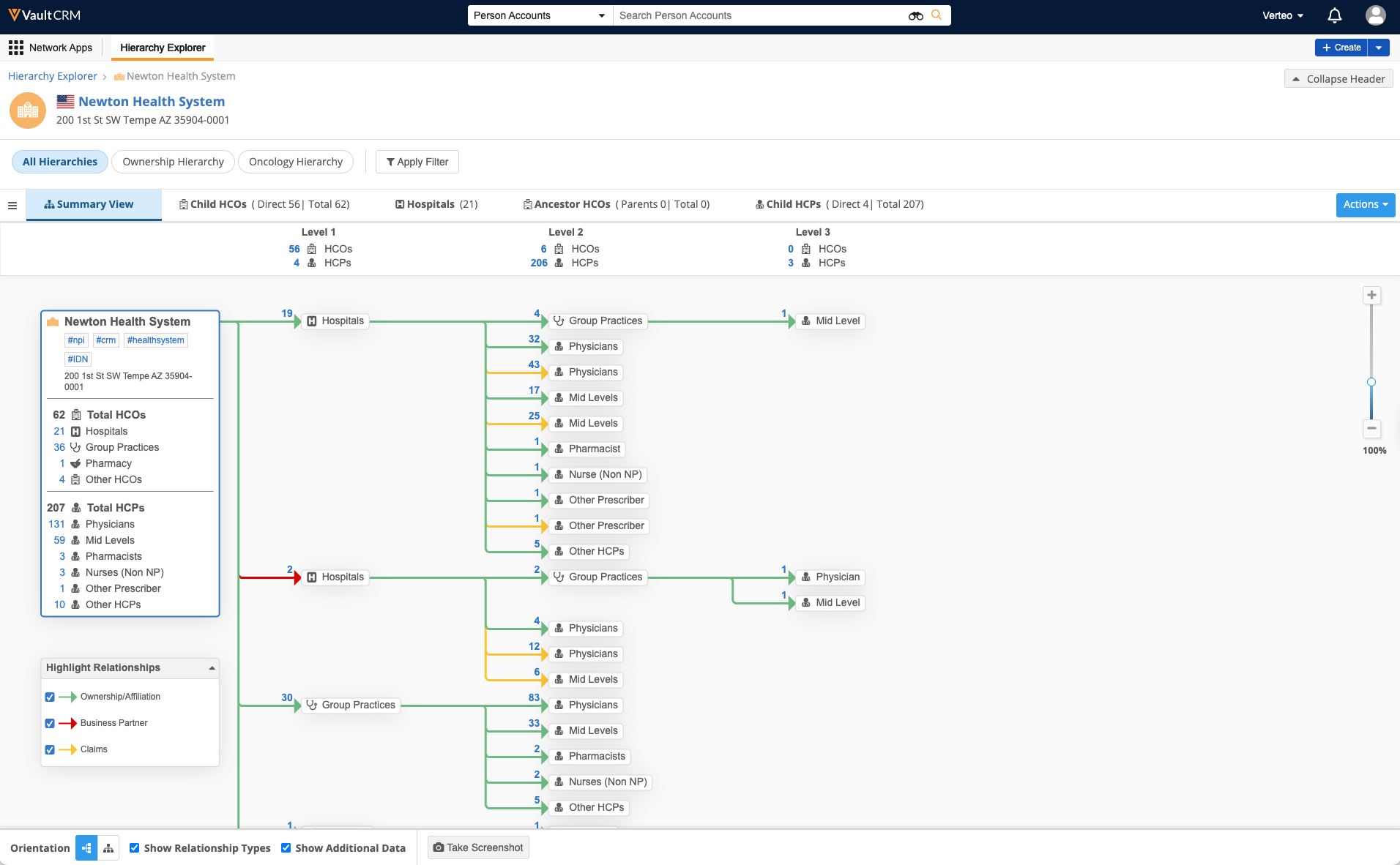
Most CRM views are bottom-up (looking at a doctor and seeing who they work for). Hierarchy Explorer starts with the top-level HCO (for example, a major hospital system) and cascades down, displaying every department, clinic, and affiliated physician.
Here's what you can see:
-
HCOs and HCPs - The structure of the organization and the professionals connected to it
-
Details - Addresses, licenses, and child accounts
-
Scope - All levels of the hierarchy are visible, provided the data exists in your Network instance
The power of roll-ups
One of the most powerful features of Hierarchy Explorer is the account Roll-up.
Imagine viewing the details of a hospital network and instantly seeing a column that tells you exactly how many relevant doctors and clinics are associated with that node.
The account Roll-up also shows you:
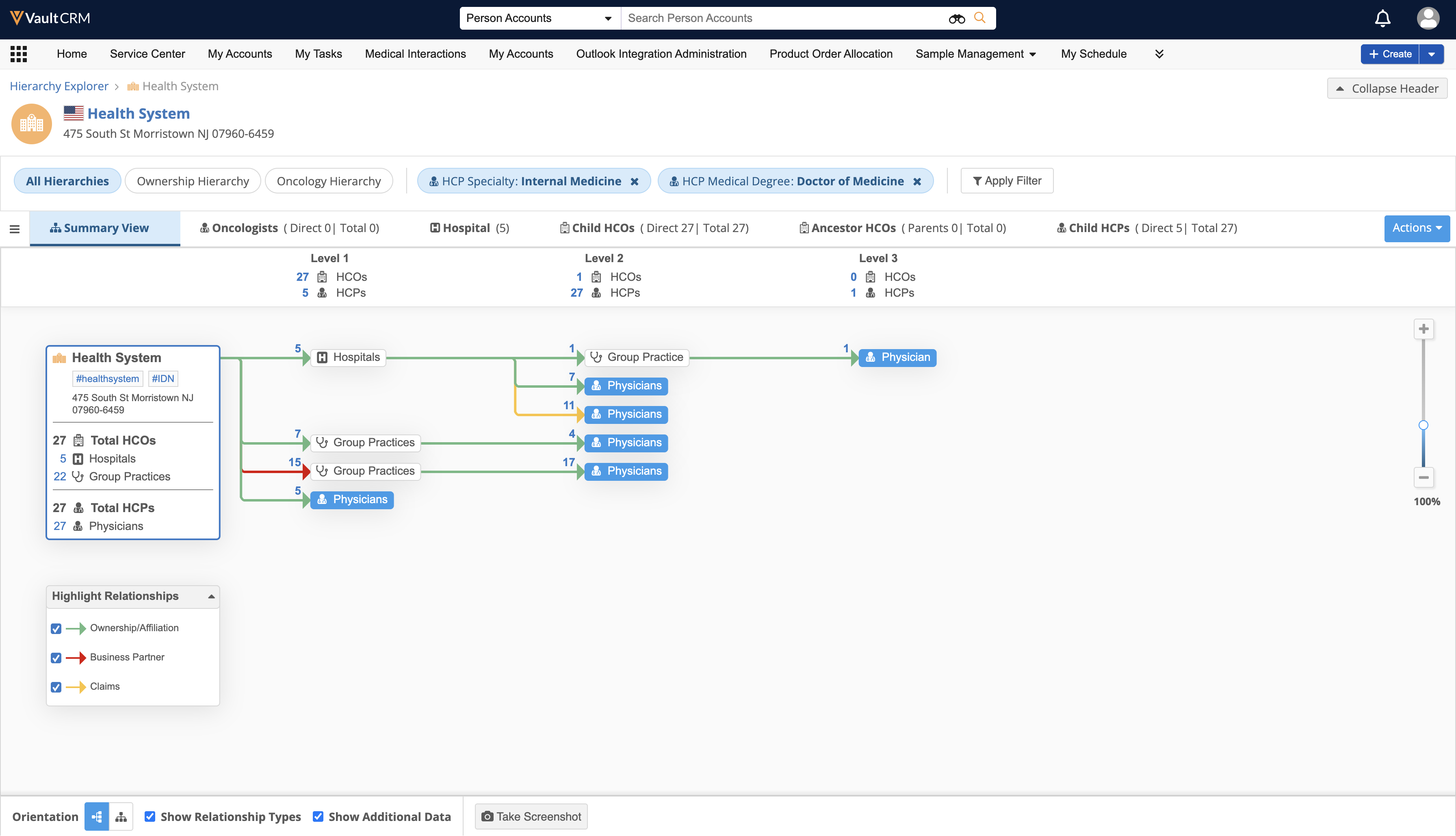
- Direct vs. Total - How many HCPs roll up directly to a specific clinic, versus how many roll up to the hospital system as a whole
- Example - Filter a health system by Medical Degree and Specialty. The tool will calculate the count of matching HCPs (for example, Neurologists) attached to every level of the hierarchy.
The Summary View
Sometimes you need to see all the data, all at once. The Summary View displays the hierarchy in a comprehensive tree format on a single page. This is the ultimate tool for understanding the shape of an account before engaging with it.