How do Order Entry modes reduce order capture time?
Order Entry modes dictate the user's experience when building an order. By configuring the most appropriate mode, organizations can significantly reduce the time it takes for field users to capture an order.
There are two Order Entry modes: Direct Quantity and Mass Add. Read on to find out how to use each one!
Direct Quantity Order Entry Mode
Direct Quantity Order Entry mode allows users to use the product selector to find products to add to an order by filtering and searching. This targeted approach can reduce the time it takes for a user to find a specific product to add to the order.
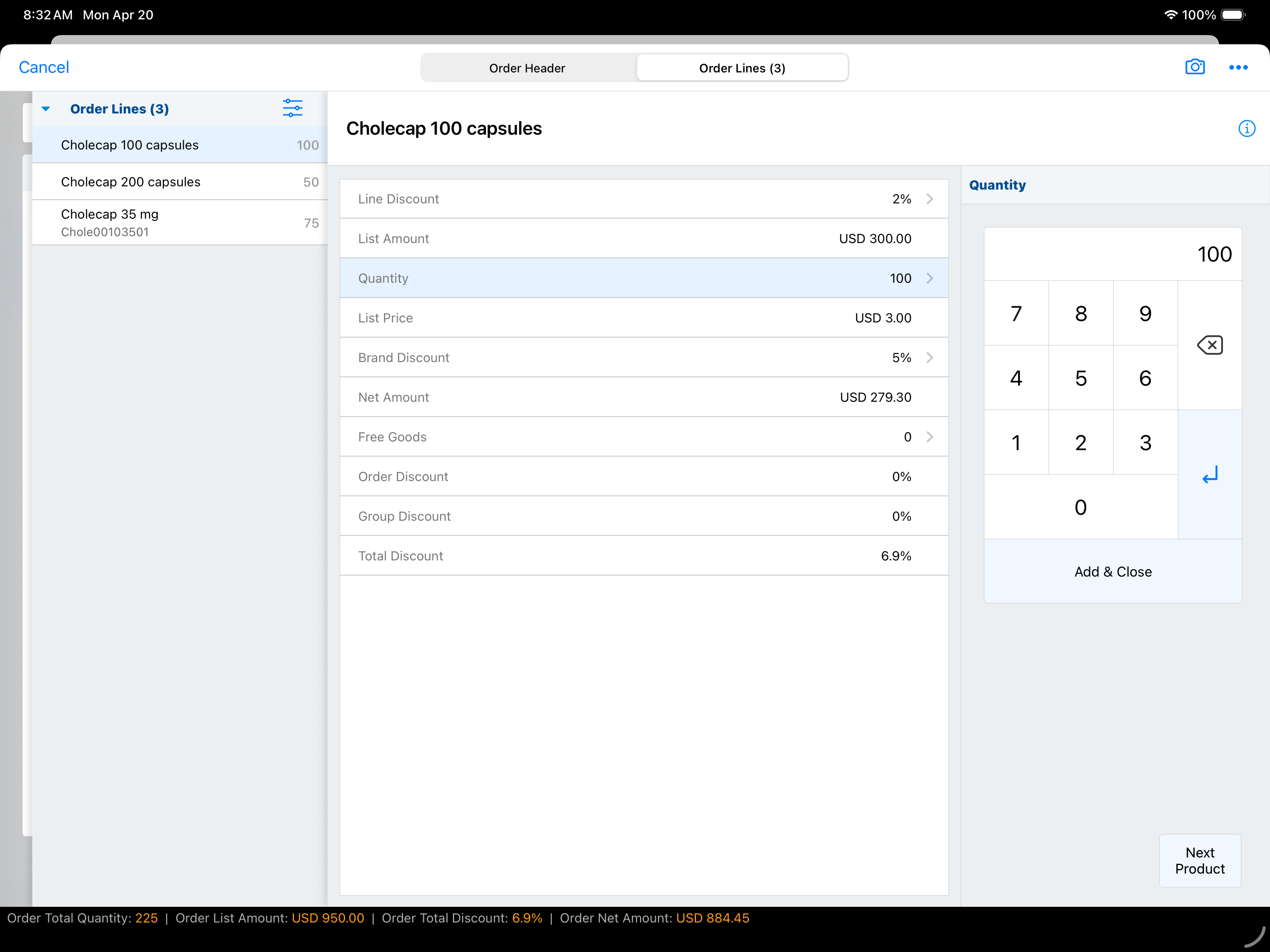
Here’s how it works:
- When you create an order and select the Order Lines tab, the Product Selector displays all available products.
- You select a specific product, add the quantity, free goods, discounts, or a value in a custom order line field.
- Finally, you select Enter to add the line to the order.
Mass Add Order Entry Mode
Mass Add Order Entry Mode takes a different approach by allowing users to see all available products automatically added to the order as order lines upon order creation. This mode can help reduce the time it takes for a user to capture an order by eliminating the need to search for products with the product selector.
Browser users must always use Mass Add Order Entry Mode, while iPad users can use either mode depending on how the system is configured.
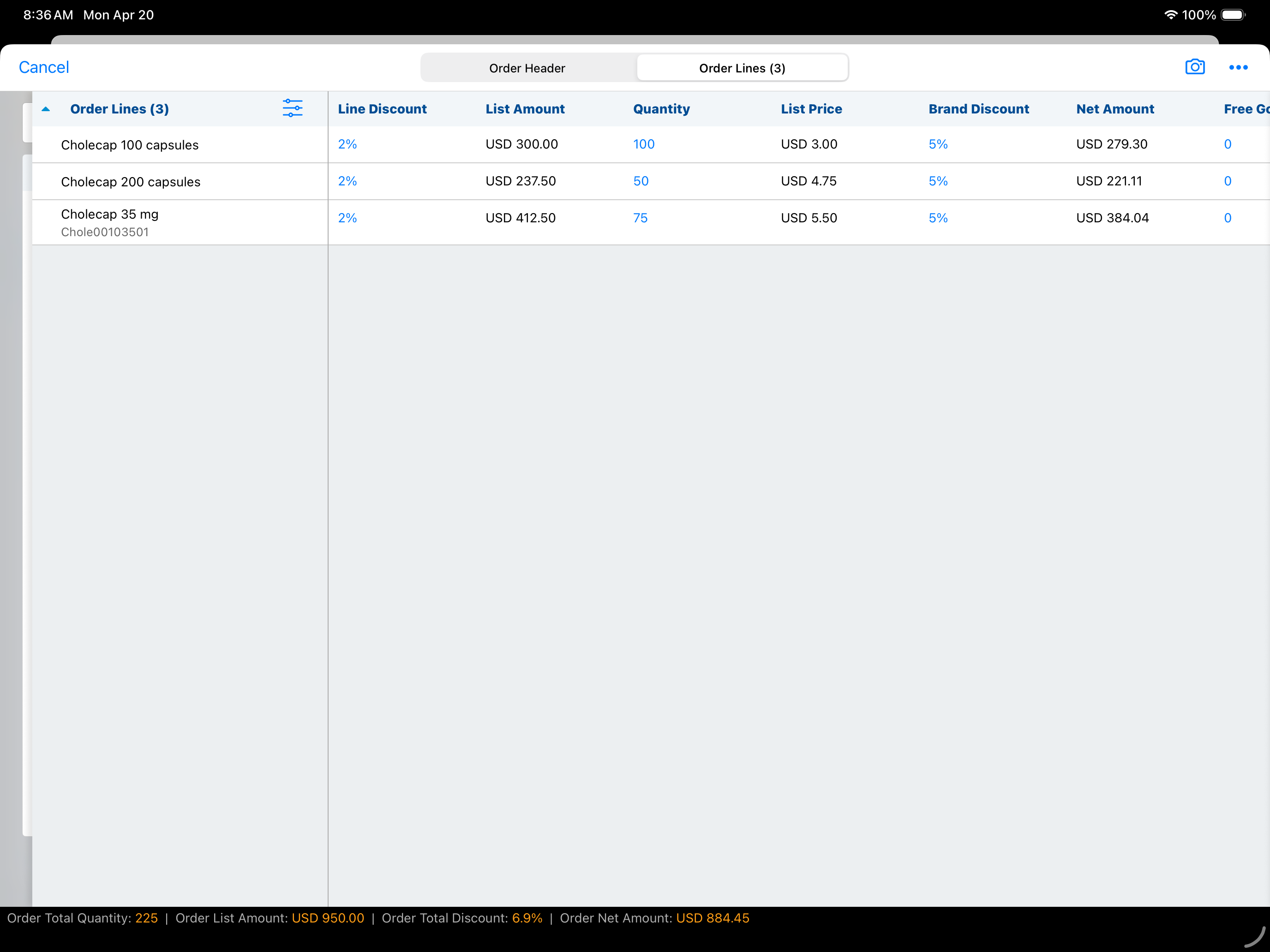
Here’s how it works:
- When you create an order and navigate to the Order Lines tab, a table view displays all products available to add to the order.
- You then scroll through the list and add quantity, free goods, discounts, or custom values to the desired lines.
- Finally, you select Enter, Previous Product, or Next Product to add the order lines to the order.