How can users manage and track Adherence?
The Adherence module provides business admins and Patient Educators with tools to manage check-in cadences and monitor patient engagement history. Use the sections below to understand how each of these tools works and when to use them.
How can I manage the check-in cadence and assigned users?
The default check-in cadence is configured via the Patient Journey object. Because patient needs vary, Patient Educators can override the default cadence on a patient-by-patient basis from the Adherence card or Patient Journey overview.
Users can also update or reassign Patient Educators from the Adherence card or Patient Journey Overview.
What does the Check-In Activity Feed show me?
The Check-In Activity Feed provides a chronological, color-coded history of patient adherence grouped by month. Each month displays as a section header with a count of events for that period so you can quickly scan how active a patient's check-in history has been. Key events displayed in the Activity Feed include the patient's enrollment date, modifications to a check-in date or cadence, and whether check-in calls have stopped or restarted.
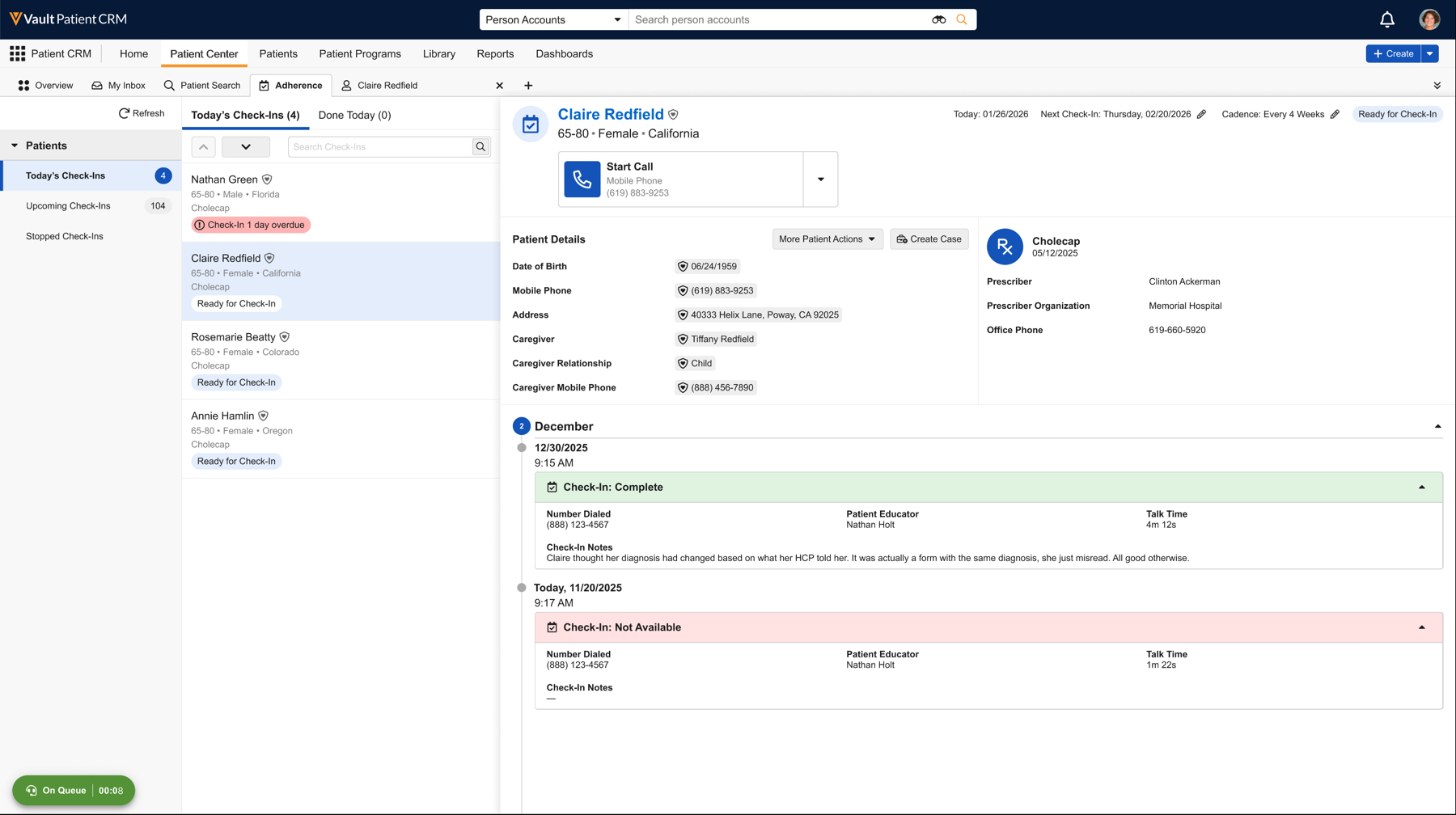
To help users easily assess a patient’s history, the Activity Feed uses color-coded card headers to indicate different statuses:
-
Green - Successfully completed check-in
-
Red - Patient stopped activities, or an unsuccessful check-in
-
Grey/Silver - Neutral events, for example, cadence or check-in date changes, Patient Educator left a voicemail, or patient enrollment
-
Orange - Overdue check-in activity
-
Purple - Check-in attempts scheduled to retry later the same day