How do I get an overview of active cases?
On the Inbound tab, My Cases presents a single launch point for reps managing inbound cases. Let’s take a look at how Sarah, a Service Center rep at Verteo Biopharma, uses My Cases.
Sarah begins her shift by navigating to the Inbound tab to access My Cases, which serves as her primary hub for the day. My Cases provides a visual, time-sorted list of all active cases currently assigned to her or her specific support queues. Each case card offers essential data at a glance, including the case subject, number, severity, and the associated account name. Escalated cases display at the top of the list, so reps can immediately identify and take action on high-priority issues.
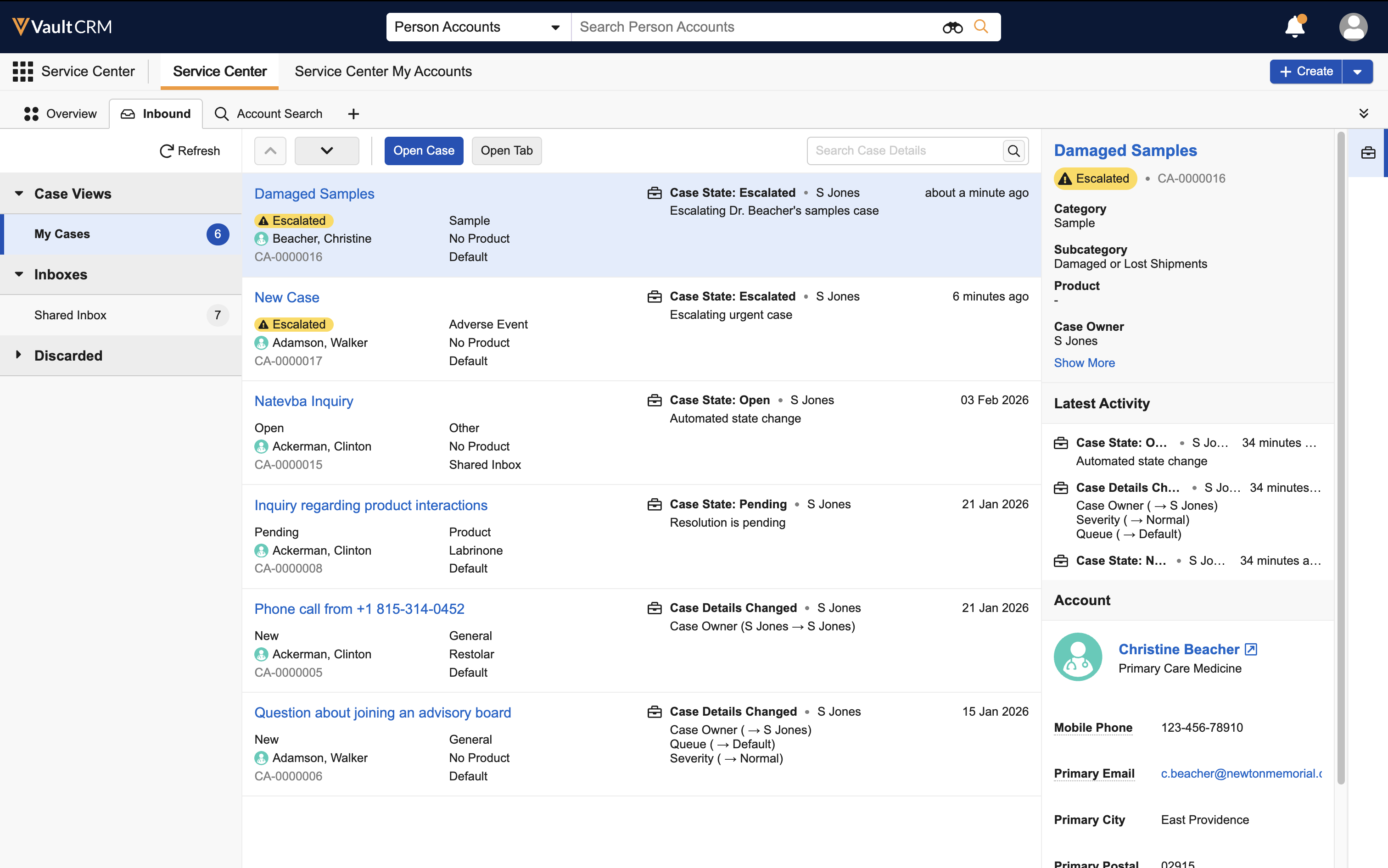
When Sarah highlights a card, the Case Preview pane on the right displays the three most recent timeline updates, for example, status changes or comments, alongside the latest email in the thread. This allows Sarah to understand case context before she even opens the full record, helping her prioritize urgent requests over routine questions.
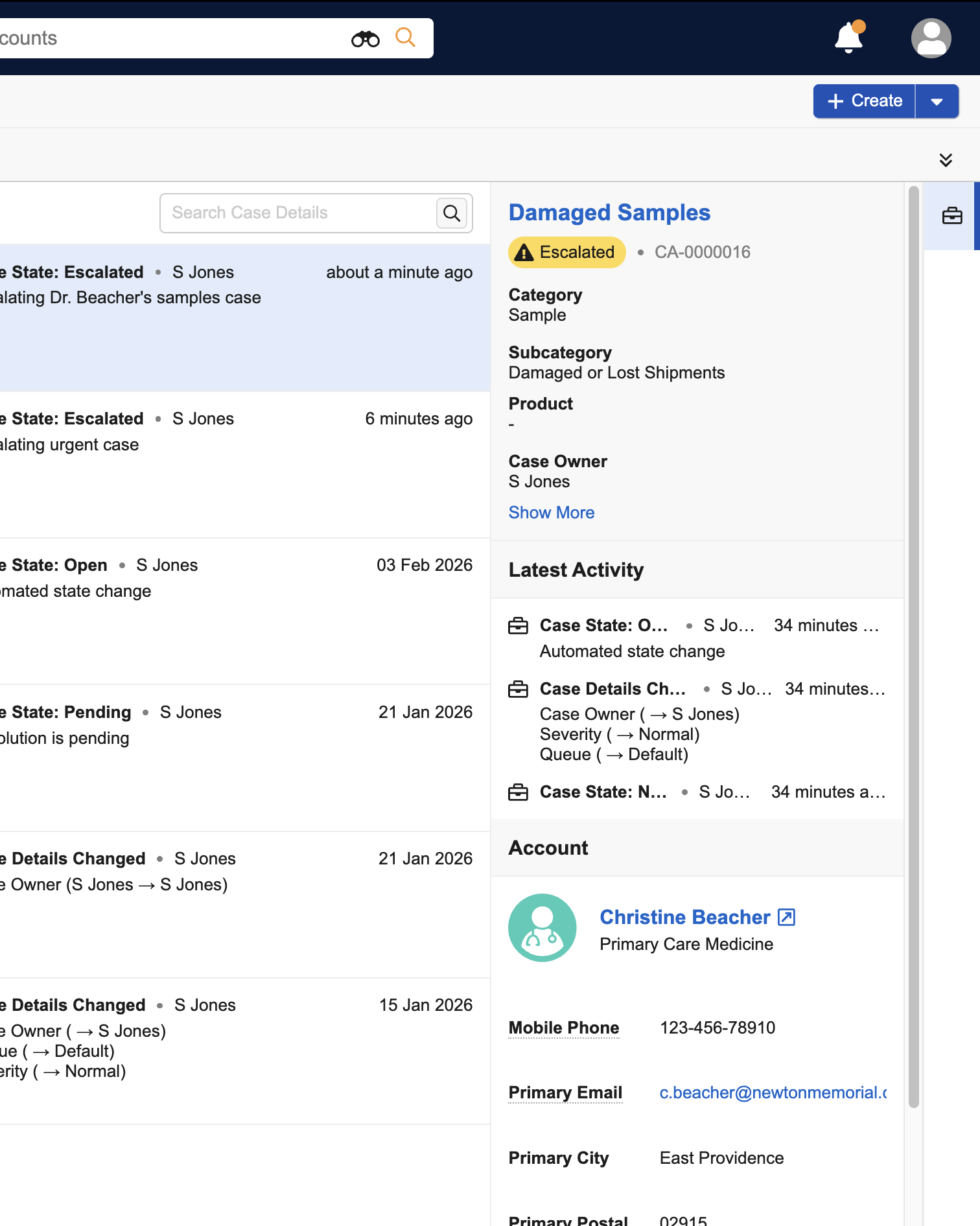
From My Cases, Sarah easily identifies the case she needs to start with: Dr. Beacher, an HCP at a major healthcare organization, received a damaged box of samples and is awaiting a response. To begin working on the case, Sarah simply selects the case from her My Cases lists, then selects the Open Case button to launch the full case console in a new tab.