How can I capture an interaction using Agentic Call Capture?
Once the backend context is established, field users can easily record their meetings on mobile devices with Agentic Call Capture, then turn these recordings into an Agentic Call Report.
Let's say you are a field user who finishes a productive meeting with a healthcare professional and wants to document the details while the conversation is fresh. You can launch the Agentic Call Report workflow using three main Agentic Call Capture entry points: long-press the power button or say "Hey Siri" followed by a command, for example "Create a Call in Vault CRM"; long-press the AI icon on the screen and select the Dictate Call option; or navigate to the My Notes tab and select the Plus icon to access dictation options.
Option 1: Siri (Hands-Free)
You have just finished a visit with an HCP. Your hands are full as you walk to the car. To capture the conversation before your next call, start the call report flow hands-free: "Hey Siri, create a call in Vault CRM." The app opens, a Voice Note page displays, and recording begins immediately.
Siri recognizes several phrasings:
- Create a call in Vault CRM
- Add a call in Vault CRM
- New call in Vault CRM
- Record a call in Vault CRM
These phrases work in any of Vault CRM's supported languages. If your organization uses a different label—for example, Interaction Report instead of Call—use that term instead.

|
Using Siri to activate Agentic Call Capture won't work if you're actively editing a record, capturing a signature, or presenting CLM content. If there are unsaved changes to a record, Siri will prompt you to save first. For more details, see Creating Call Reports with Agentic Call Capture on the Vault CRM online help. |
Option 2: Long-Press the AI Button
Later that afternoon, you are working in Vault CRM while waiting to meet with an HCP. You realize you need to create a call report for a previous visit. From the Account Detail page, long-press the AI button.
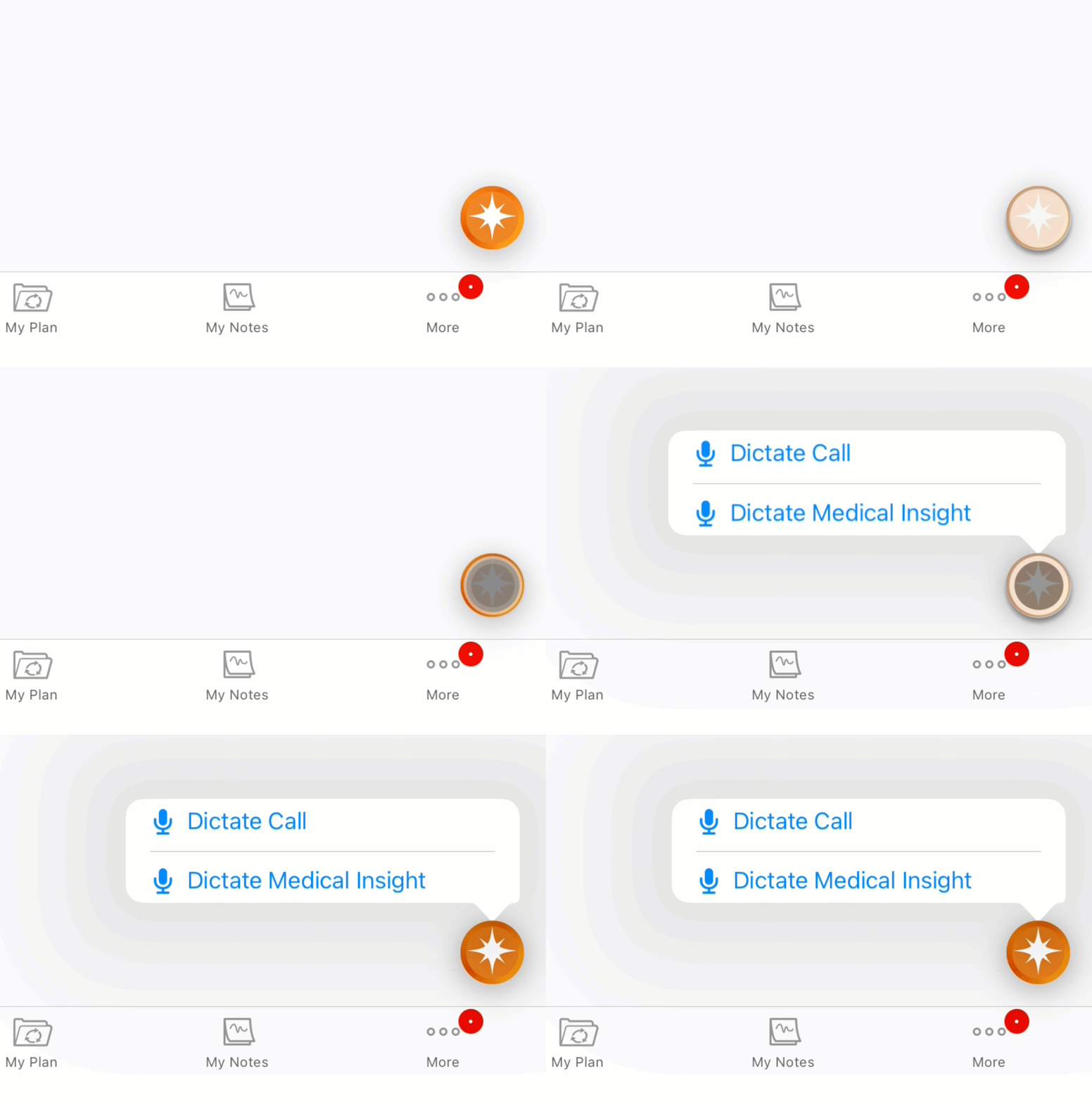
A menu displays: Dictate Call or Dictate Medical Insight. Select Dictate Call, and recording begins. Starting from an account-specific page means that the account is automatically associated with the Voice Note.
Option 3: My Notes Tab
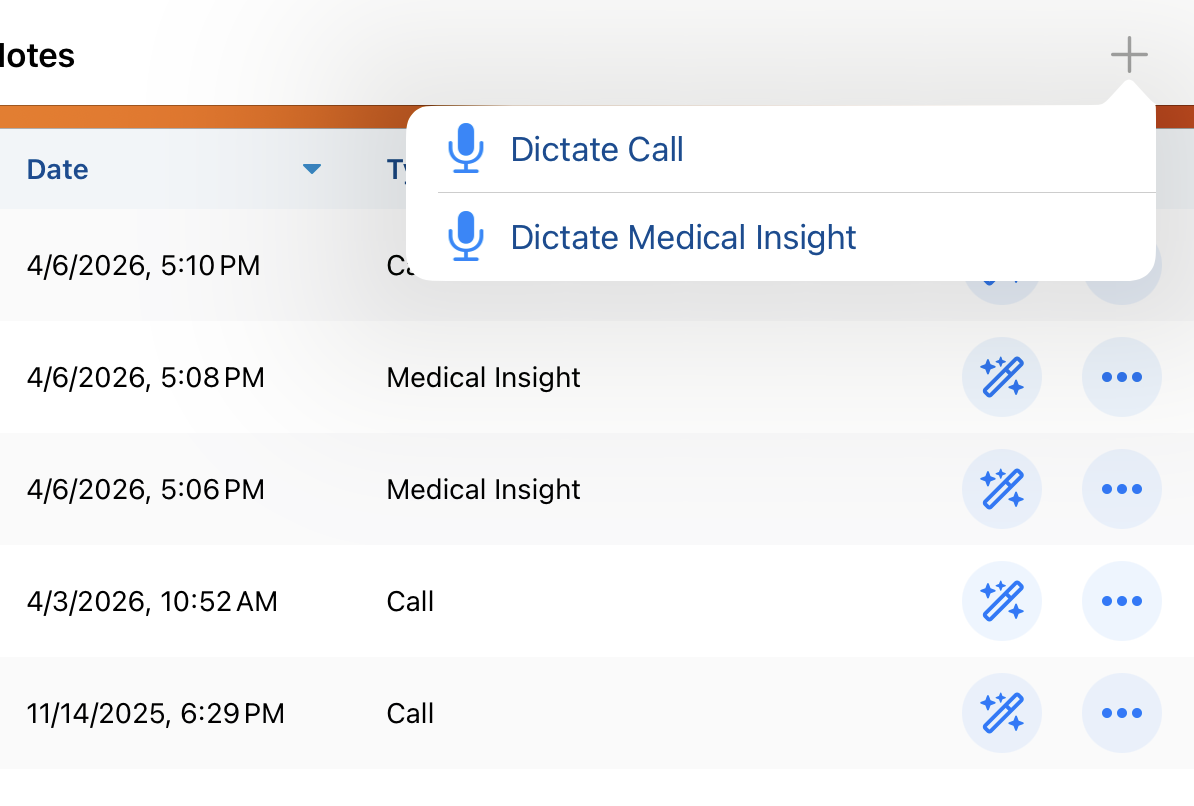
Alternatively, you can navigate to the My Notes tab and select the Plus (+) icon in the tab header. The same dictation menu displays, with options for Call and Medical Insight. This is your preferred method when capturing several Voice Notes in sequence—for example, at the end of a full field day.
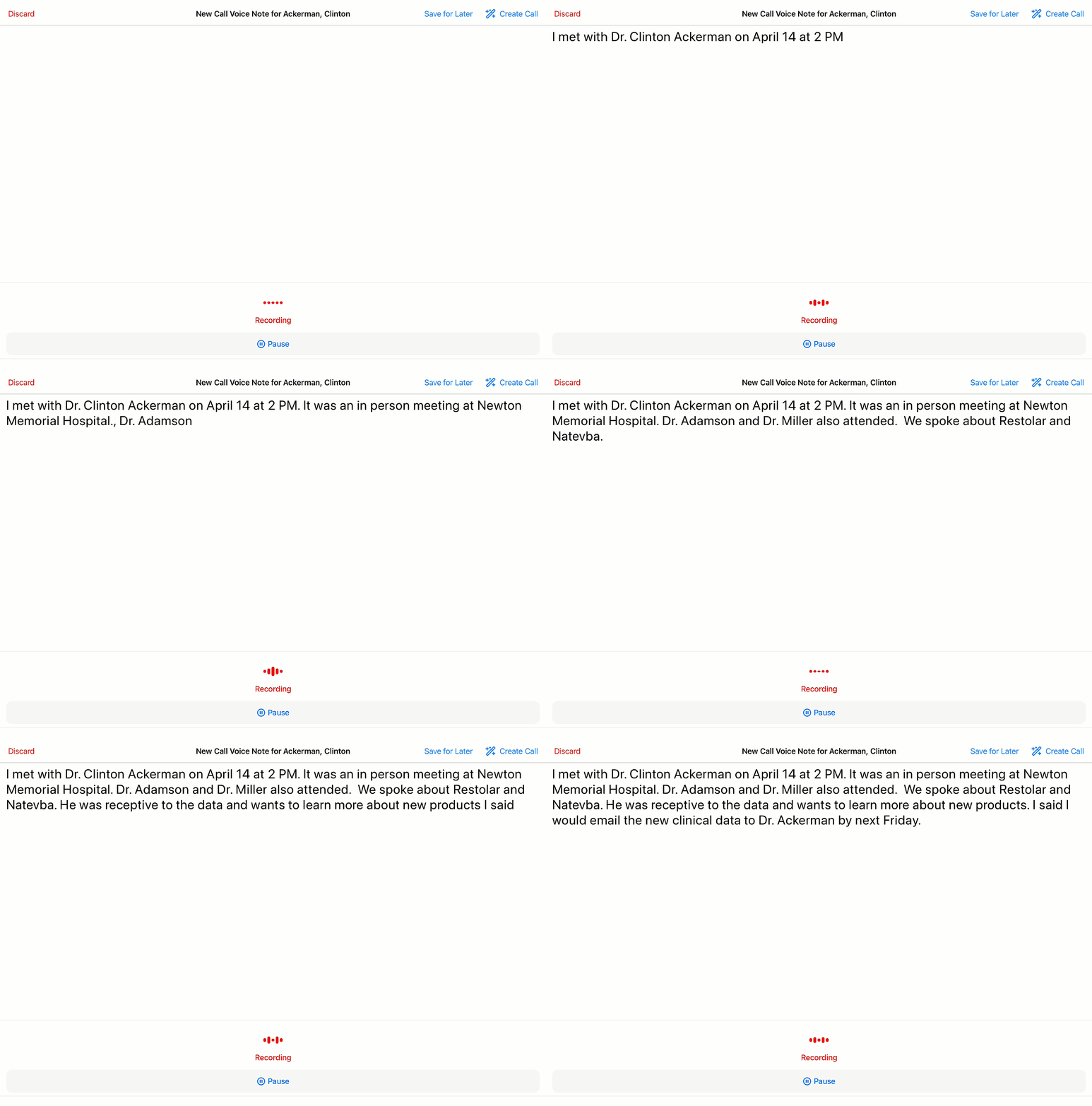
As soon as dictation begins, a Call Voice Note opens, and recording starts automatically. Describe the interaction in your own words, speaking at a clear, moderate pace. Cover the healthcare professional's name, the date, the products discussed, and any follow-up activities. If you experience an interruption, select the Pause icon and select Resume when you are ready to continue.
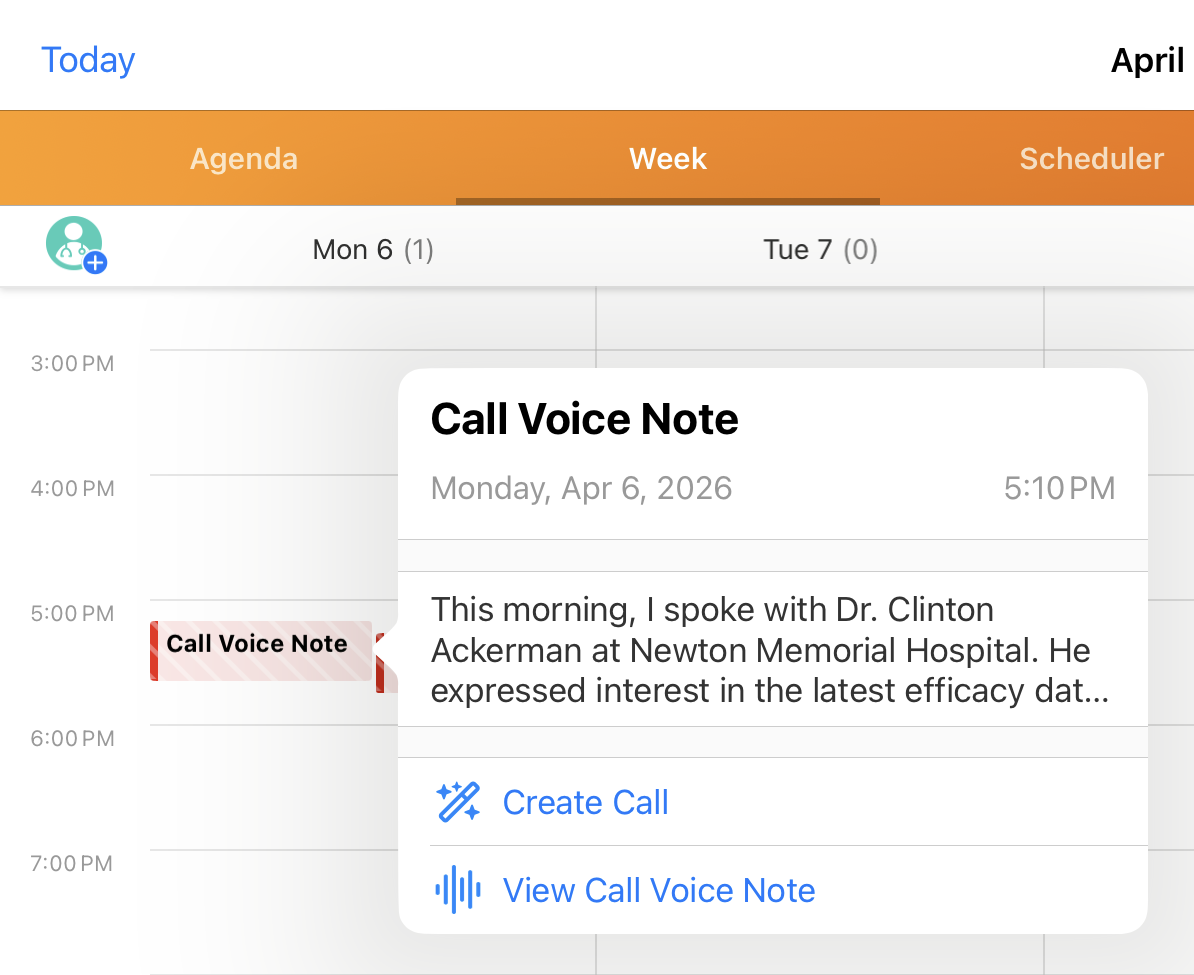
When finished, select Create Call from the header to generate the structured record. If you are working offline or would like to create the call report later, select Save for Later. This stores the Voice Note audio and transcript locally as a red-striped entry in My Schedule, which can be turned into a call report at your leisure. You can also access saved Voice Notes from My Notes.