How do I check and improve my insight's quality?
A populated Commercial Insight is a great start, but is it actually a strong one? That's where Agentic Insight Quality comes in, right on the same record.
Open your Commercial Insight, and you will see a panel on the right side of the screen (or a tab strip, if you are on iPhone) with tabs: Guidelines and Quality. The Guidelines tab shows you, before you even finish writing, the rule names and descriptions your organization expects a strong insight to meet.
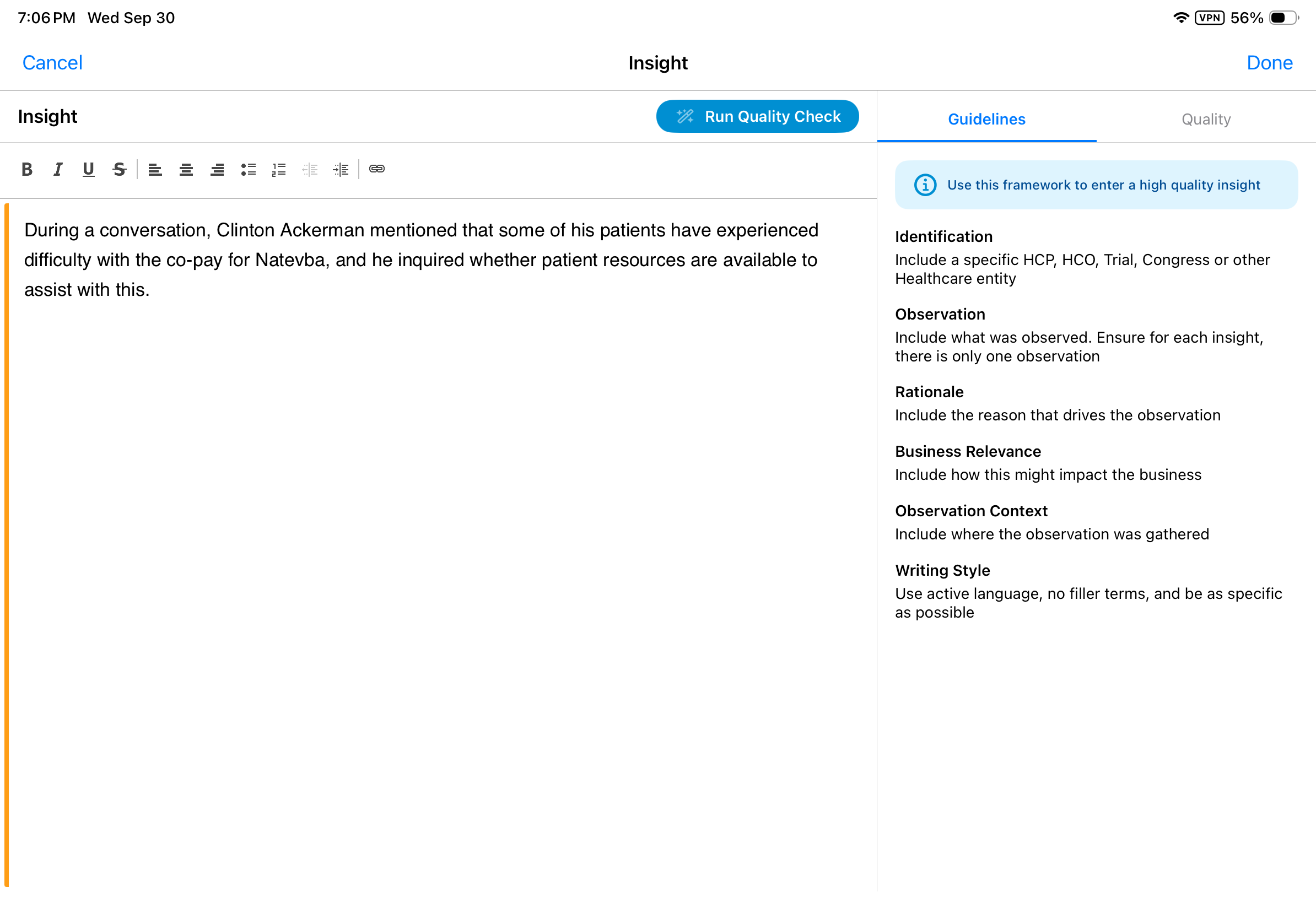
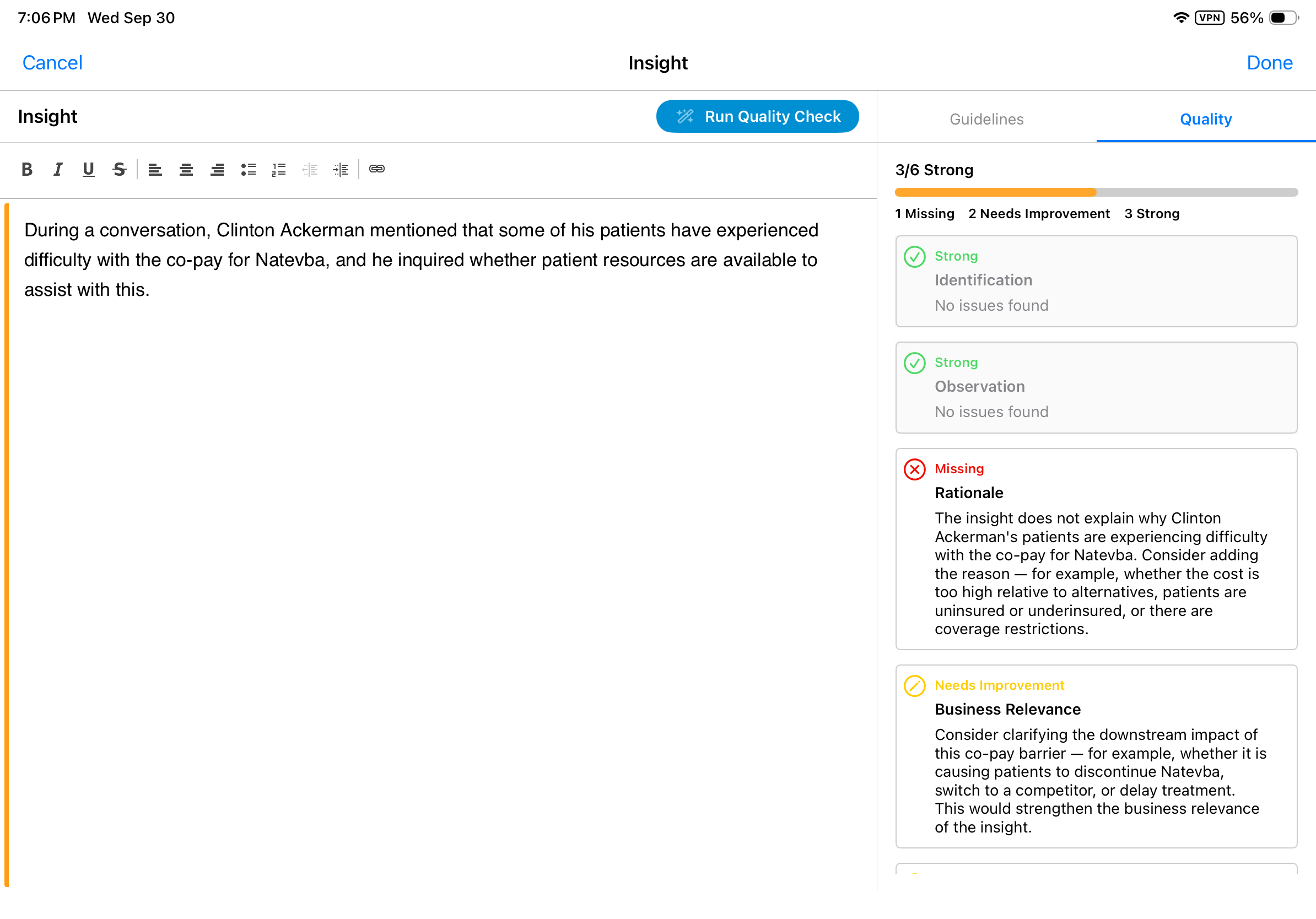
Once your Insight text is in place—whether you typed it or it was populated through Agentic Insight Capture—select Run Quality Check from below the Insight field or from the Quality tab itself, or review feedback if run automatically. The agent evaluates your text against those same guidelines and returns feedback in three categories:
- Strong, marked with a green check, meaning that rule is met
- Needs Improvement, marked with a yellow pencil, meaning the agent has a specific suggestion for you
- Missing, marked with a red X, meaning something required is absent entirely

|
By default, the quality check runs automatically when insights are captured with Agentic Insight Capture. However, admins can configure the quality check to run On-Demand, meaning it only runs when users select the Run Quality Check button. This applies to both individual Commercial Insights and Commercial Insights on the call report. For details, see Configuring Agentic Insight Capture. |
If you edit the text, selecting Run Quality Check again triggers a brand-new, full re-evaluation of the entire insight, not just the part you changed. Keep in mind that modifying the text while a check is already running cancels that check, so it is worth letting one finish before you start typing again.
Commercial Insights on the Agentic Call Report™
This same experience is available if you are working with Commercial Insights directly on a call report. If Agentic Insight Quality for Commercial Insights is enabled together with Agentic Insight Capture, a quality check runs automatically on each insight captured this way, so you see indicators for Strong, Needs Improvement, and Missing feedback directly below each Commercial Insight on the call report, without any extra steps on your part.
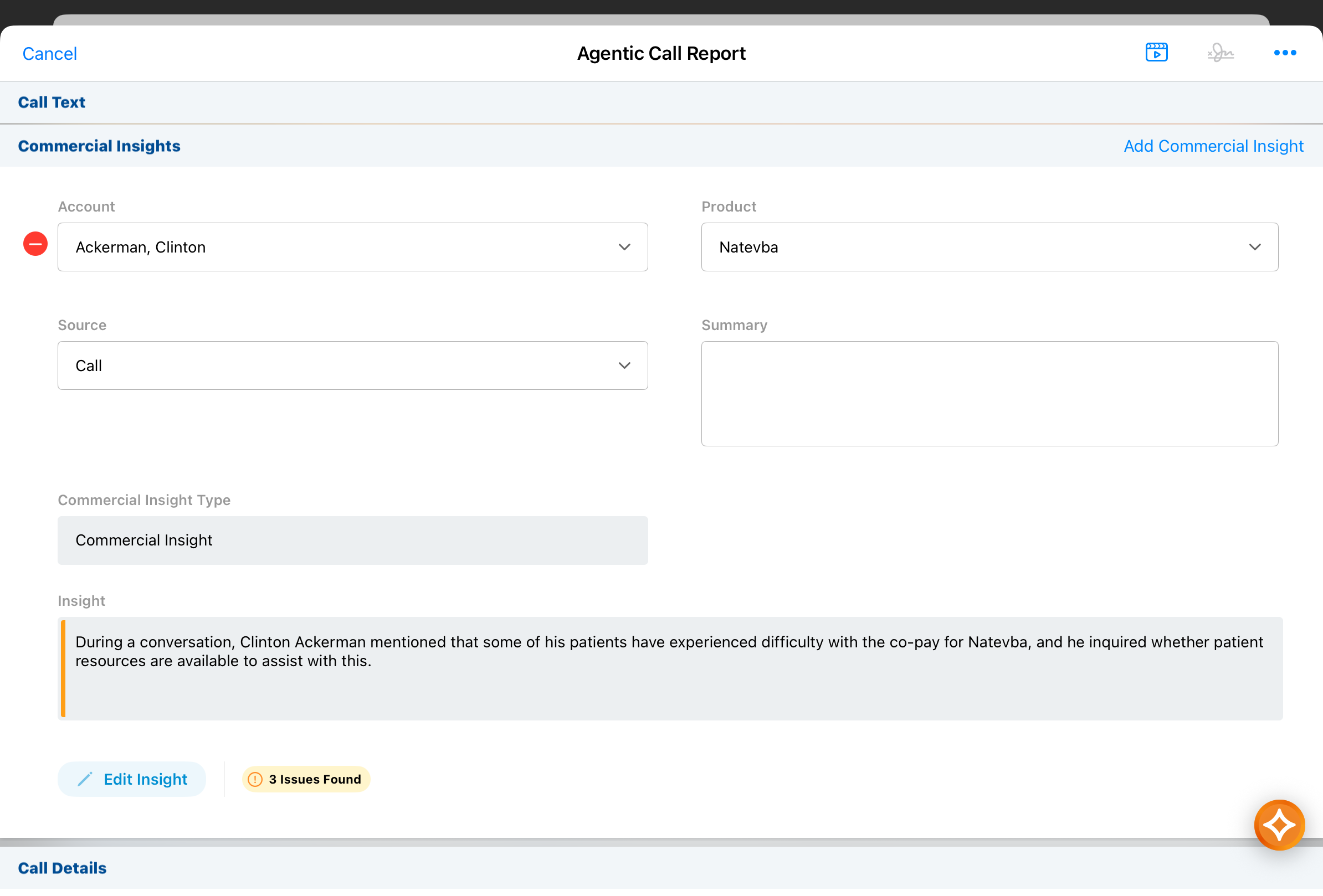
You can also select Add Commercial Insight, or select Edit Insight or Run Quality Check on an insight that is already there, and the same Insight edit view displays, with Guidelines and Quality panels.
Editing an auto-captured insight works exactly like editing one you dictated on its own: update the text, then select Run Quality Check again if you want to confirm your edits.