How do I access Agentic Voice?
There are three ways to open Agentic Voice and start capturing information via Voice Note recordings, depending on where you are and what you have in your hands. All three lead to the same recording experience.
Option 1: Siri (Hands-Free)
Sarah, a field user, has just finished her visit with Dr. Clinton Ackerman. Her hands are full as she walks to her car. She wants to capture the conversation before her next call. Sarah says, "Hey Siri, create a call in Vault CRM." The app opens, a Voice Note page displays, and recording begins immediately.
Siri recognizes several phrasings:
- Create a call in Vault CRM
- Add a call in Vault CRM
- New call in Vault CRM
- Record a call in Vault CRM
These phrases work in any of Vault CRM's supported languages. If your organization uses a different label—for example, Interaction Report instead of Call—use that term instead.

|
Using Siri to activate Agentic Voice won't work if you're actively editing a record, capturing a signature, or presenting CLM content. If there are unsaved changes to a record, Siri will prompt you to save first. For more details, see Creating Call Reports with Agentic Voice on the Vault CRM online help. |
Option 2: Long-Press the AI Button
Later that afternoon, Sarah is working in Vault CRM while waiting to meet with an HCP. She realizes she needs to create a call report for her previous visit. From the Account Detail page, she long-presses the AI button.
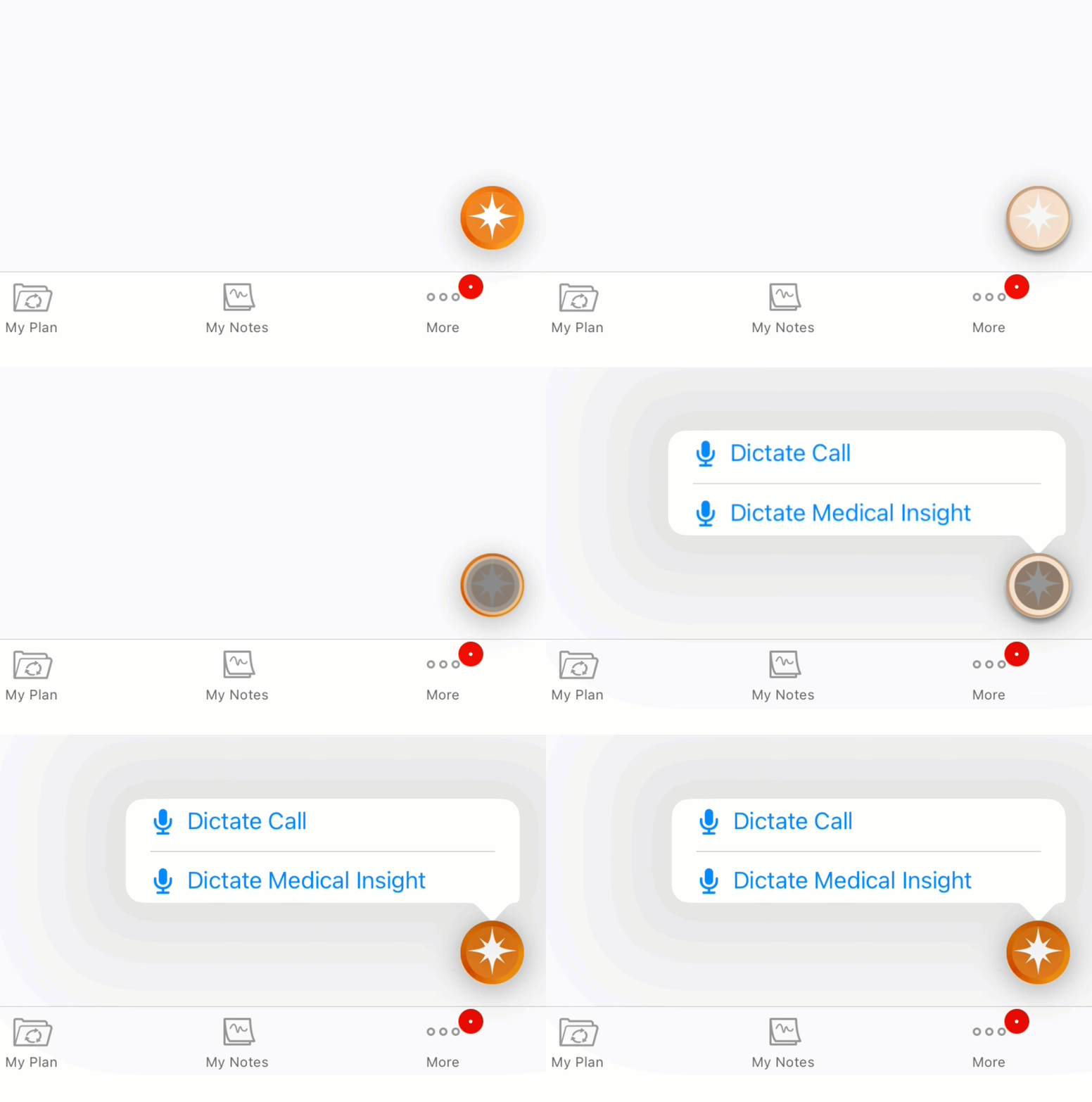
A menu displays: Dictate Call or Dictate Medical Insight. She selects Dictate Call, and recording begins. Starting from an account-specific page means that the account is automatically associated with the Voice Note.
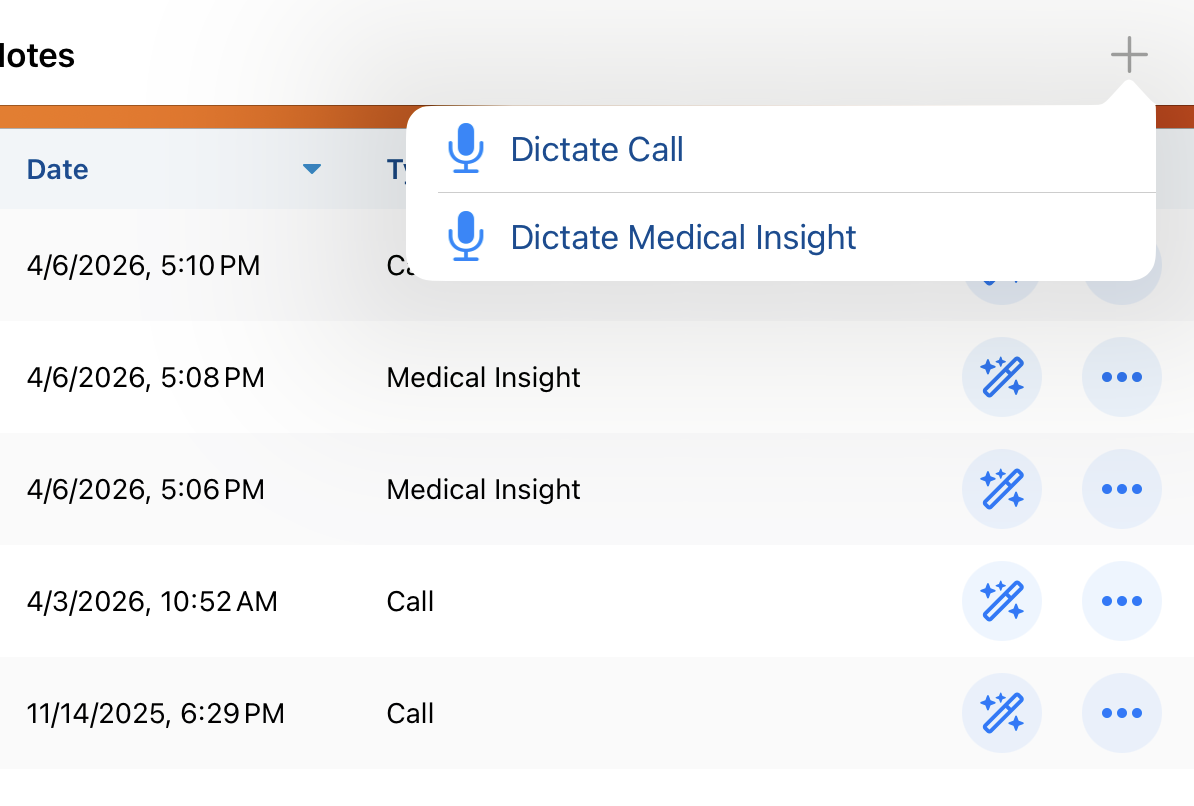
Option 3: My Notes Tab
Alternatively, Sarah can navigate to the My Notes tab and select the Plus (+) icon in the tab header. The same dictation menu displays, with options for Call and Medical Insight. This is her preferred method when she's capturing several Voice Notes in sequence—for example, at the end of a full field day.