How do I capture call information with my voice?
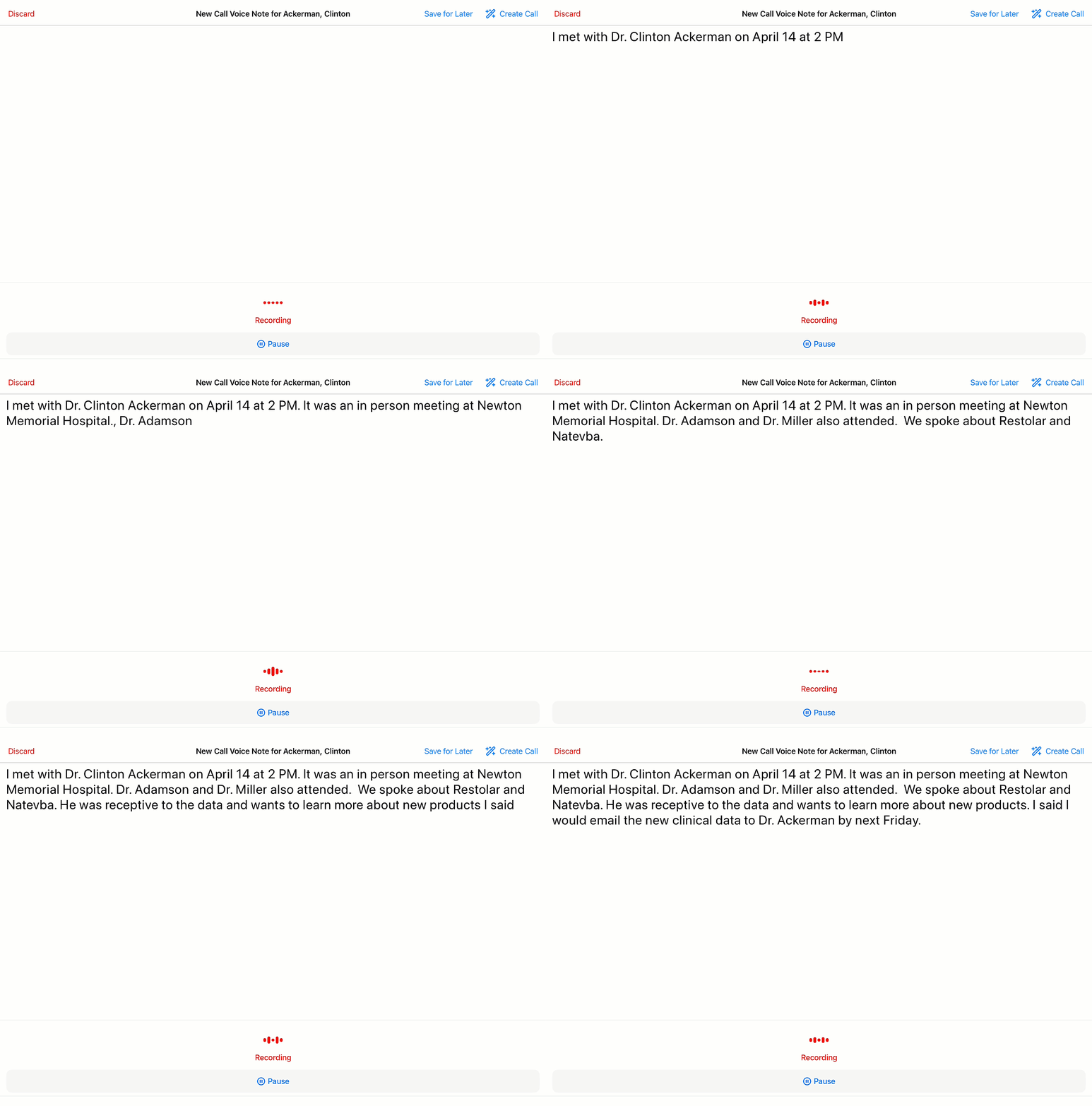
When Sarah triggers Agentic Voice—whether through Siri, a long-press on the AI button, or the My Notes tab—the Voice Note page opens and recording begins. She speaks naturally:
"I met with Dr. Clinton Ackerman on April 14 at 2 PM. It was an in person meeting at Newton Memorial Hospital. Dr. Adamson and Dr. Miller also attended. We spoke about Restolar and Natevba. He was receptive to the data and wants to learn more about new products. I said I would email the new clinical data to Dr. Ackerman by next Friday. "

|
For best results, speak at a clear, moderate pace with minimal background noise. For specific product names or clinical terms, admins can create Voice Dictionary Entries to ensure the pronunciation is accurately recognized and transcribed. |
Finishing the Voice Note
When Sarah finishes recording, she has three options in the Voice Note header:
-
Create Call — Processes the Voice Note immediately and opens a pre-populated call report for review. This requires an internet connection.
-
Save for Later — Saves the Voice Note to her device without generating a record yet. Useful when offline or when she wants to process several recordings at once. She can come back to it later from My Notes or from My Schedule, where Call Voice Notes display as red-striped entries on her calendar.
-
Discard — Permanently deletes the recording and transcript after confirmation. Use Discard only when you're certain you no longer need the recording — it cannot be undone.
In this case, Sarah selects Create Call. Agentic Voice gets to work.