How do I create a Business Portal?
First of all, any X-Page that uses one of the three page types (Account, Account Plan, or Territory) can be deployed and viewed as a Business Portal. If you already have an X-Page in mind that you want to share with Business Portal users, you can simply deploy it as a Business Portal. If however, you want to create an X-Page to share information with Business Portal users, for example account plan information for a specific set of Key Opinion Leaders (KOLs), a content developer can create the page using X-Pages or a content creator can create the page using X-Pages Studio.
There are three Business Portal page types used to display different information:
- Account - displays KOL and account report object type information
- Account Plan - displays account plan object type information
- Territory - displays territory insights and default territory insights object type information

|
Later in this Flightpath, we tell you about X-Pages templates that are available to make creating an X-Page for a Business Portal much easier. |
Let's assume a content creator created a Business Portal for you using X-Pages Studio that displays all the information you want to share.
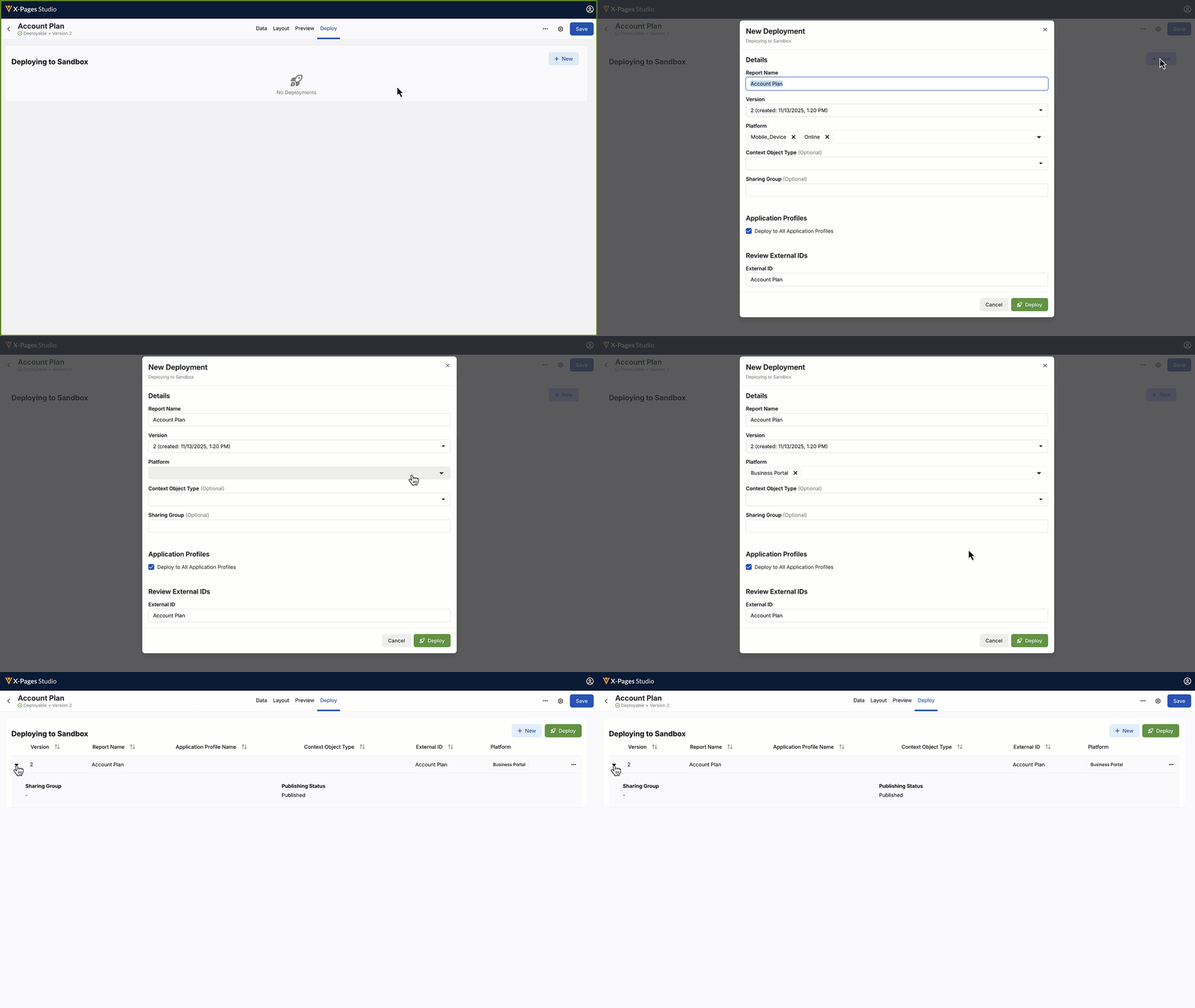
Once the X-Page is created, the deployment process ensures it's made available specifically as a Business Portal. Content creators must follow the general steps for Deploying Pages to Vault CRM Using X-Pages Studio:
-
Log into X-Pages Studio.
-
Select the page or page template you want to deploy as a Business Portal.
-
Select the Deploy tab.
-
Select business_portal__v from the Platform drop-down list.
-
Select Deploy.
Now let's look at how to preview the Business Portal before sharing it with others.